
Video Sharpener
Enhancers AI reads whether your footage is soft from shake, missed focus or a soft lens, then the video sharpener rebuilds the clarity along that path so you can pause on the softest second and see the edges at 100 percent.
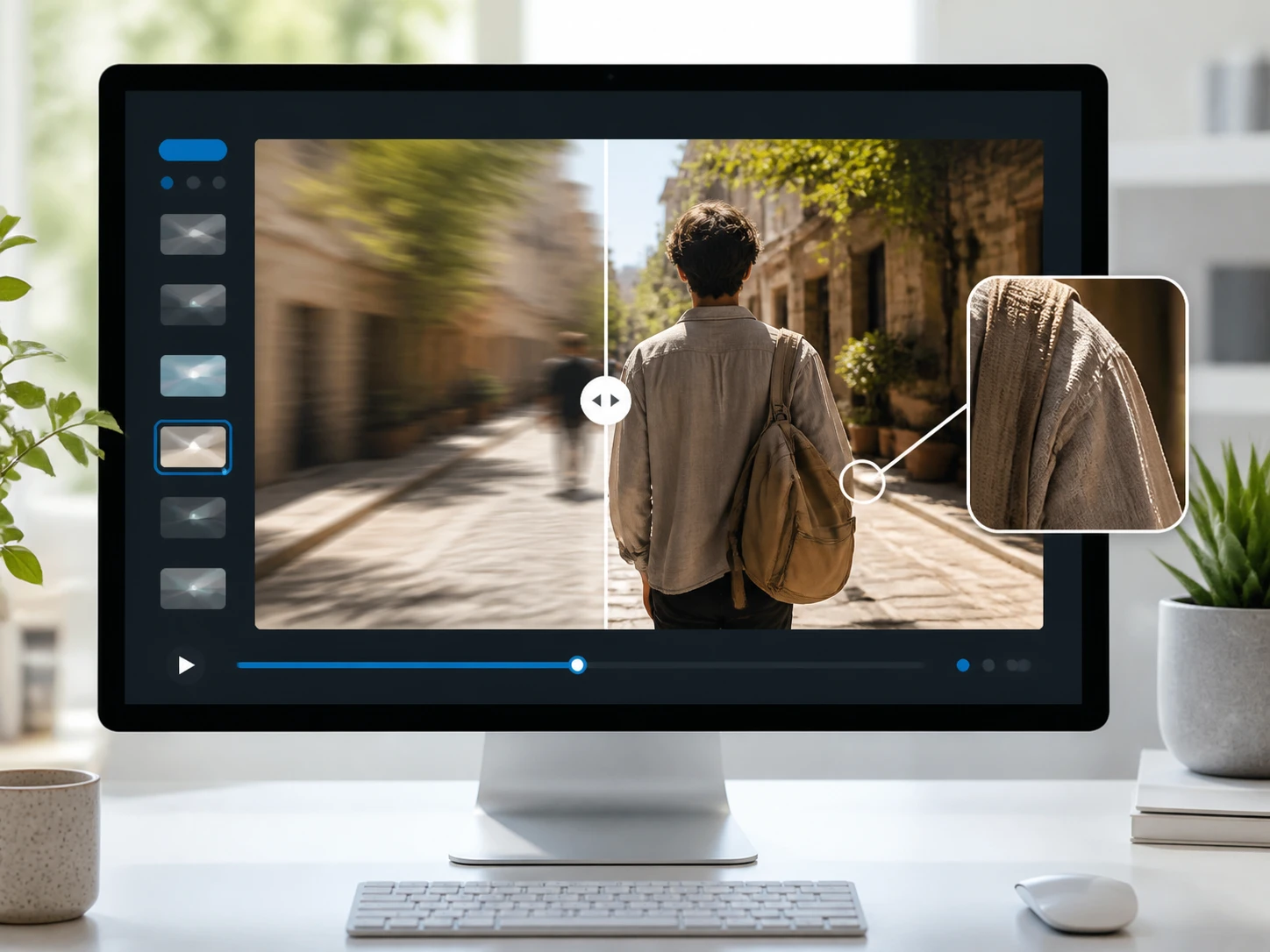
Sharpen a Video From Upload to Export
Whichever kind of blur you are dealing with, the same three steps hold, from the file you drop in to the clip you check and download.
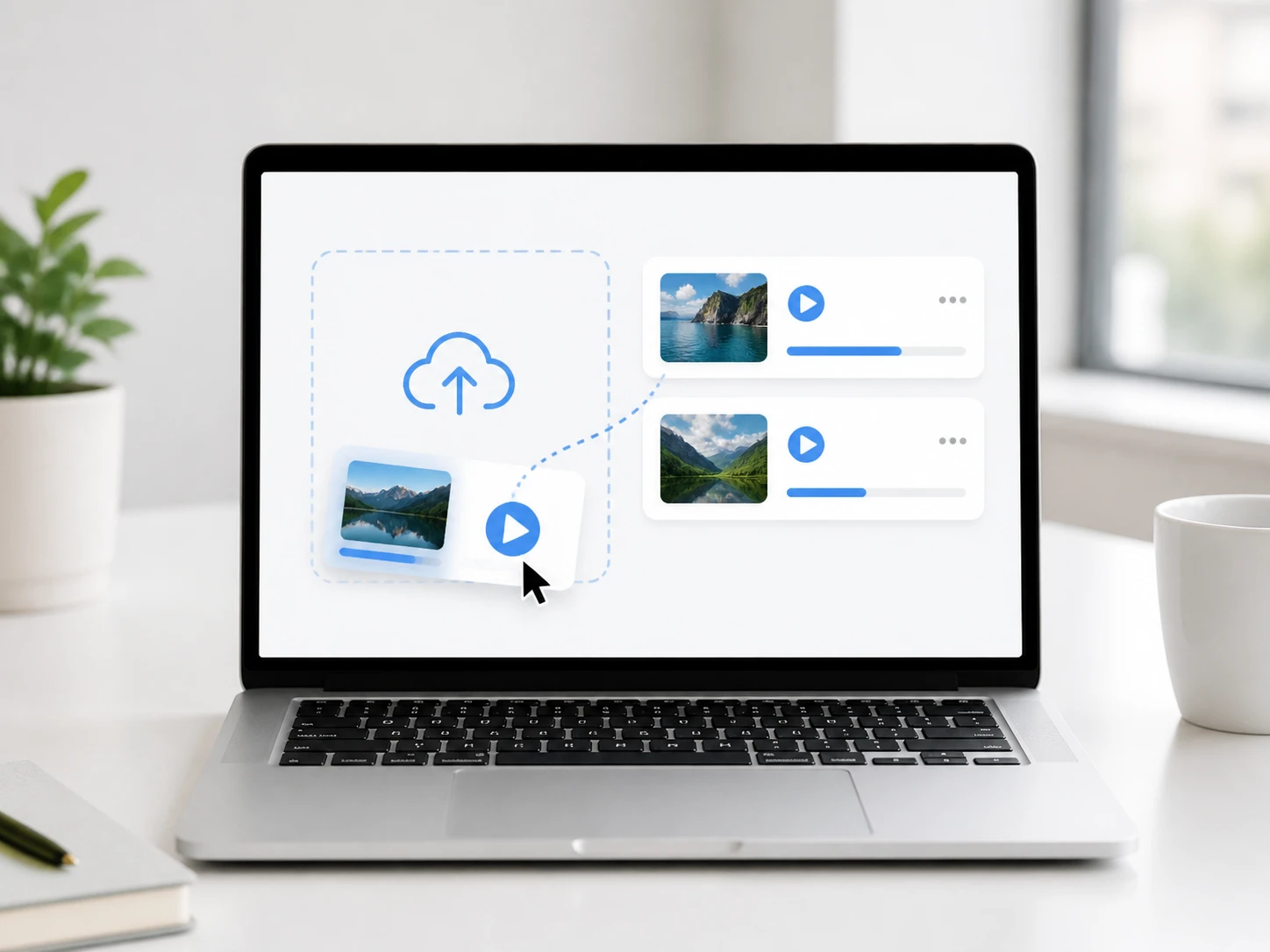
Upload Your Footage
Drag in your MP4 or MOV, or click to pick the file, and queue more than one clip in the video sharpener when a whole batch needs the same work. It all opens in the browser, so you can sharpen video online with nothing to install before the first pass.
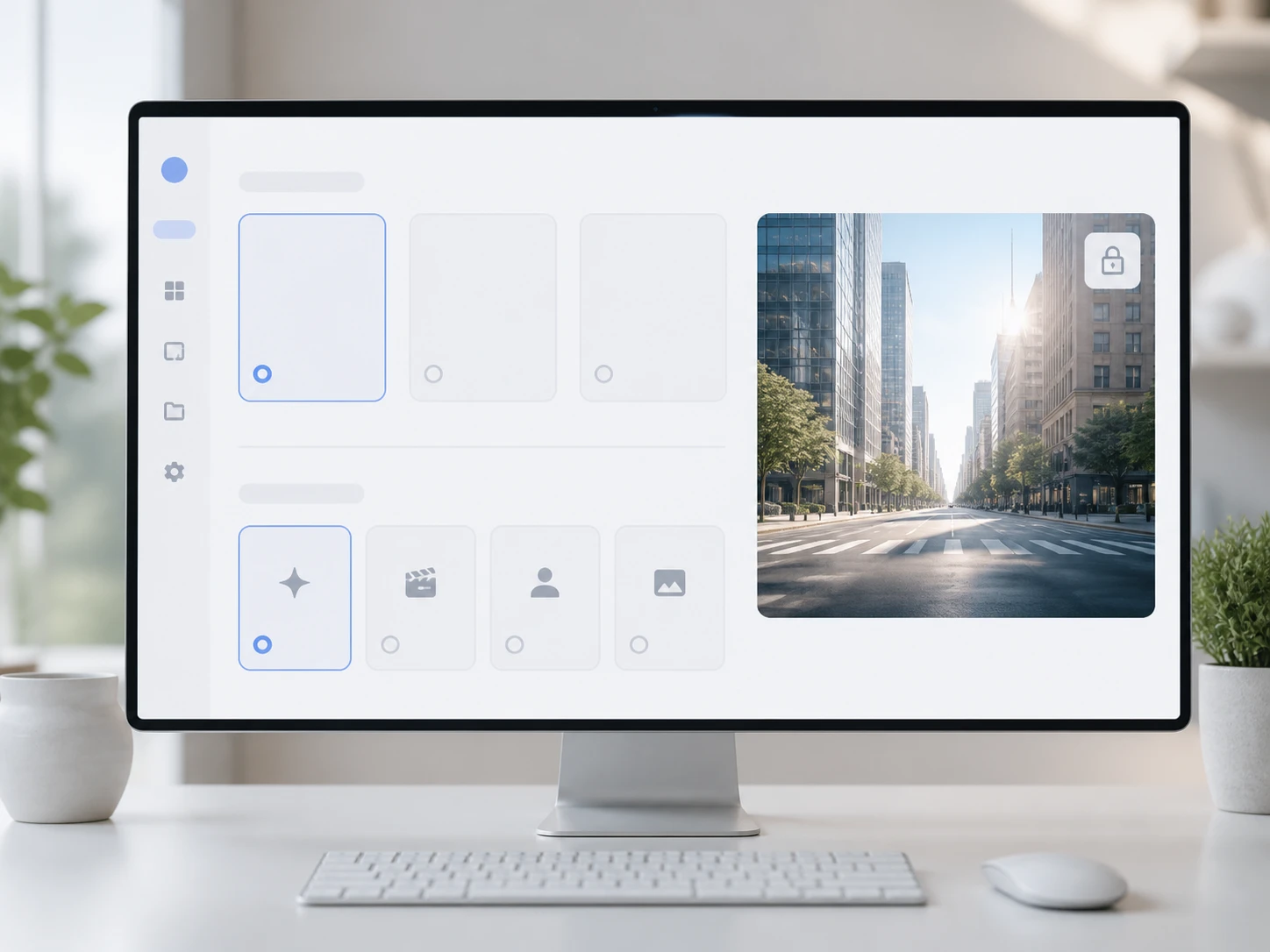
Let It Read the Blur, or Take Over
By default the video sharpener judges what kind of softness it is looking at and routes to the matching model. Prefer to decide yourself? Pick a model, or choose a use case and the settings fill in. Keep the resolution as it is, or move up to 4K only when you genuinely need a larger frame.
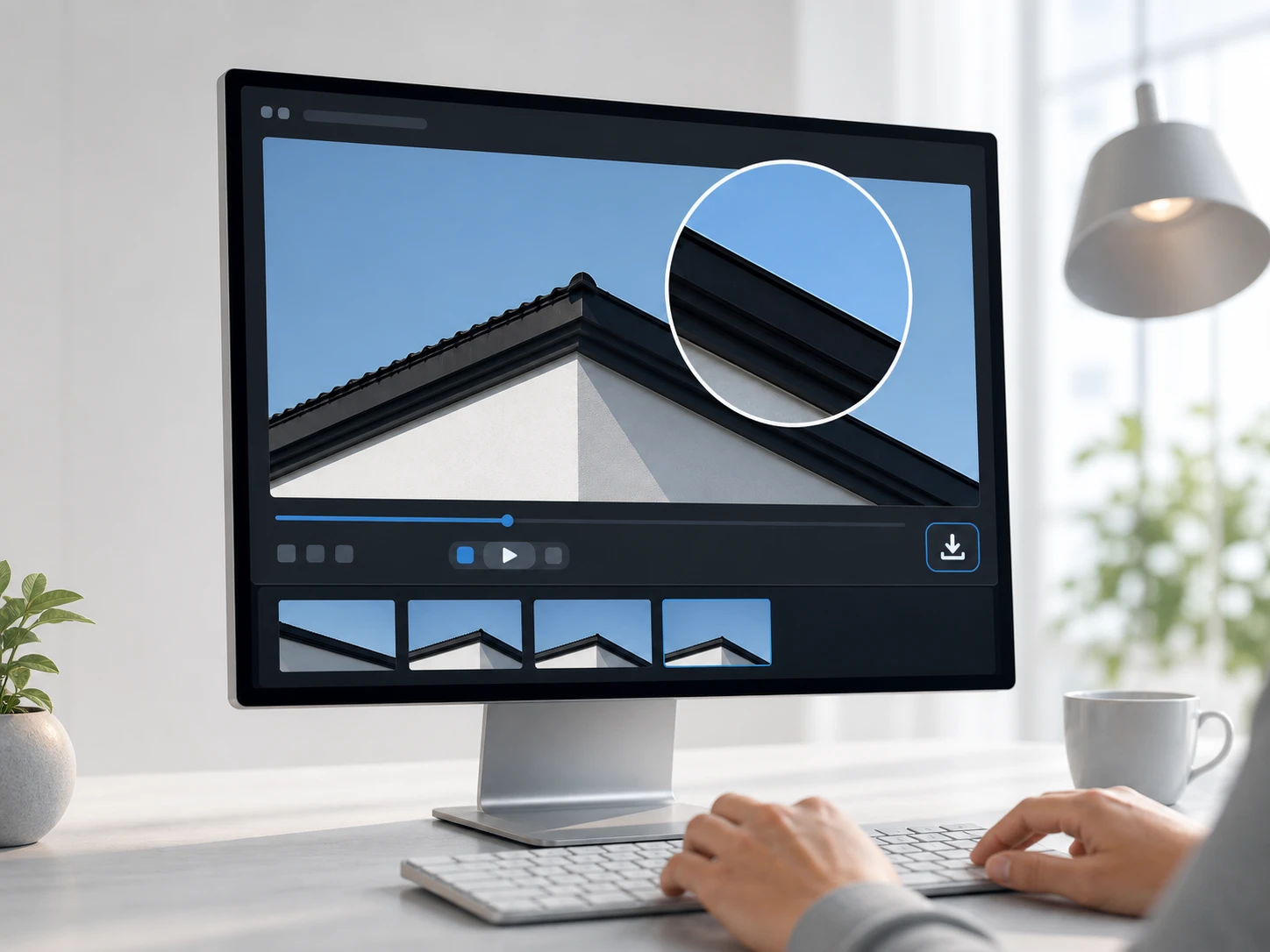
Check It, Then Export Clean
When the pass finishes, pause on the softest second and step through at 100 percent. Look at whether the edges truly separated or a bright halo crept in along them. Not right? Switch the use case and run it back through the video sharpener. When it holds up, download the result with no watermark.
Where the Video Sharpener Earns Its Keep
Blur has causes, and the video sharpener handles each one on its own terms.
Handheld Interviews That Drift
You followed the subject on foot, and on a phone it looked fine. On a big screen the edges smear along the direction you moved. Treat it as shake, and once the video sharpener finishes, trail that motion to confirm the drag is gone. This is where a good video sharpener earns its place.
Focus Landed on the Background
The camera locked onto what sat behind your subject, so the face went soft while the wall stayed crisp. Run it as a focus miss and watch the video sharpener bring the detail tiers back, down to eyelashes and the weave of fabric. To sharpen out of focus video like this, the point is recovered structure, not a contrast bump.
Clips Squeezed by Reposting
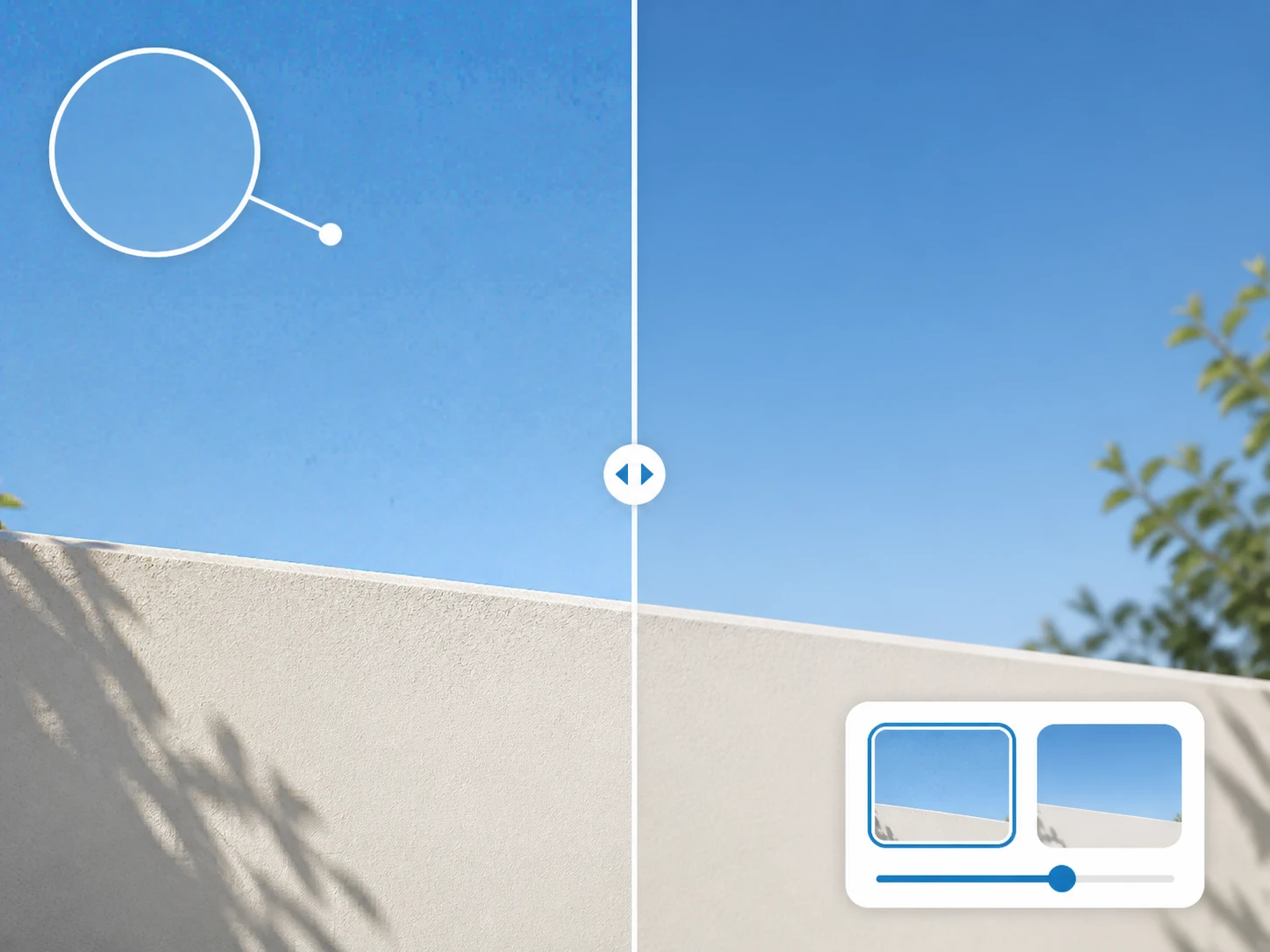
After a few rounds of sharing, blocky patches and dirty edges shout louder than the blur itself. The video sharpener clears the compression artifacts and noise first, then you judge sharpness. A flat area like sky or a plain wall, viewed at 100 percent, tells you whether it came clean without turning to plastic.
AI Generated Footage That Reads Fake
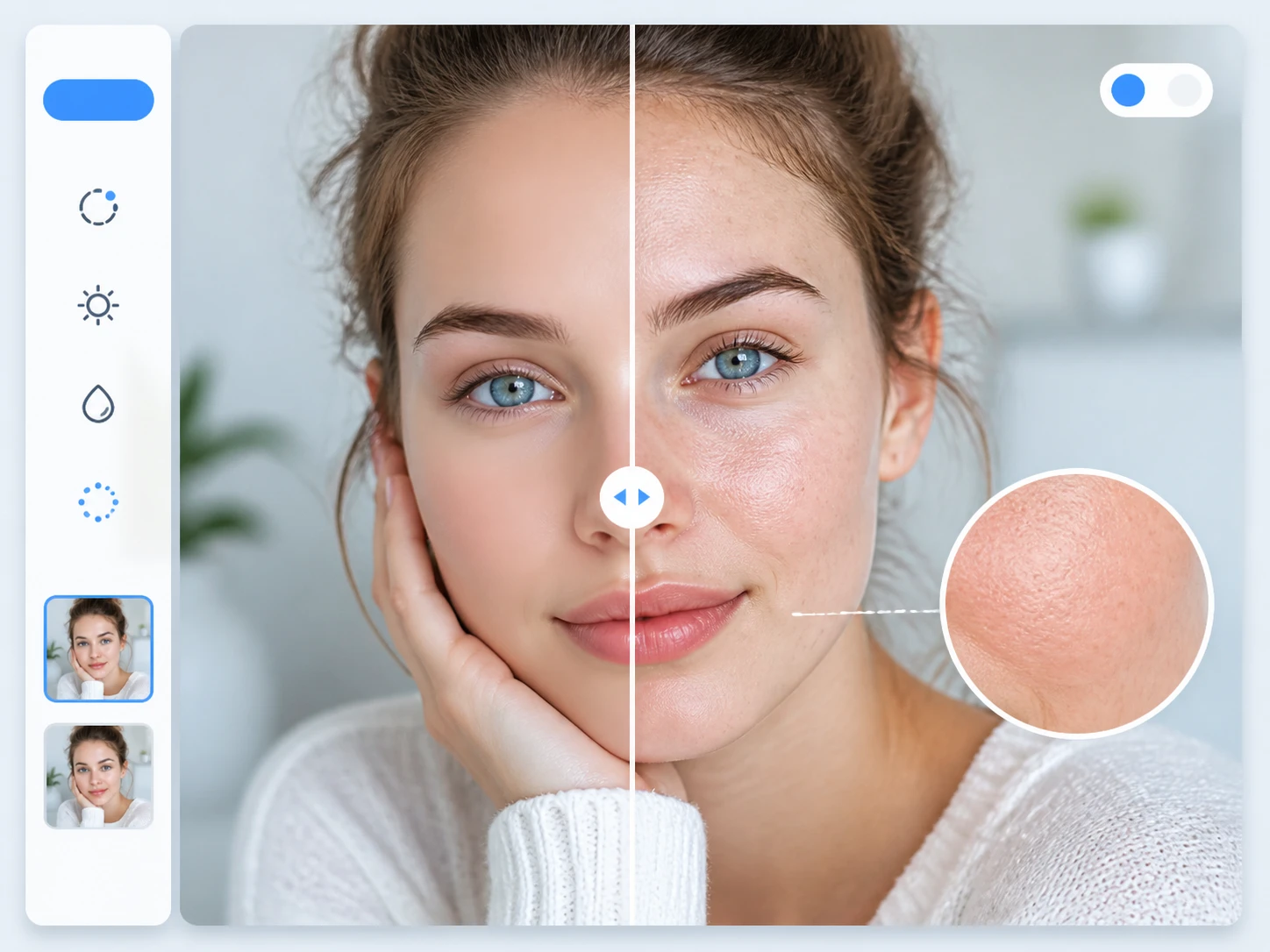
The resolution is fine, but the texture gives it away, most of all in flat areas and skin. Put real detail back with the video sharpener, then look at those two spots before anything else. It is a quiet way to sharpen video quality in a clip that came from a model.
Who Reaches for This Video Sharpener
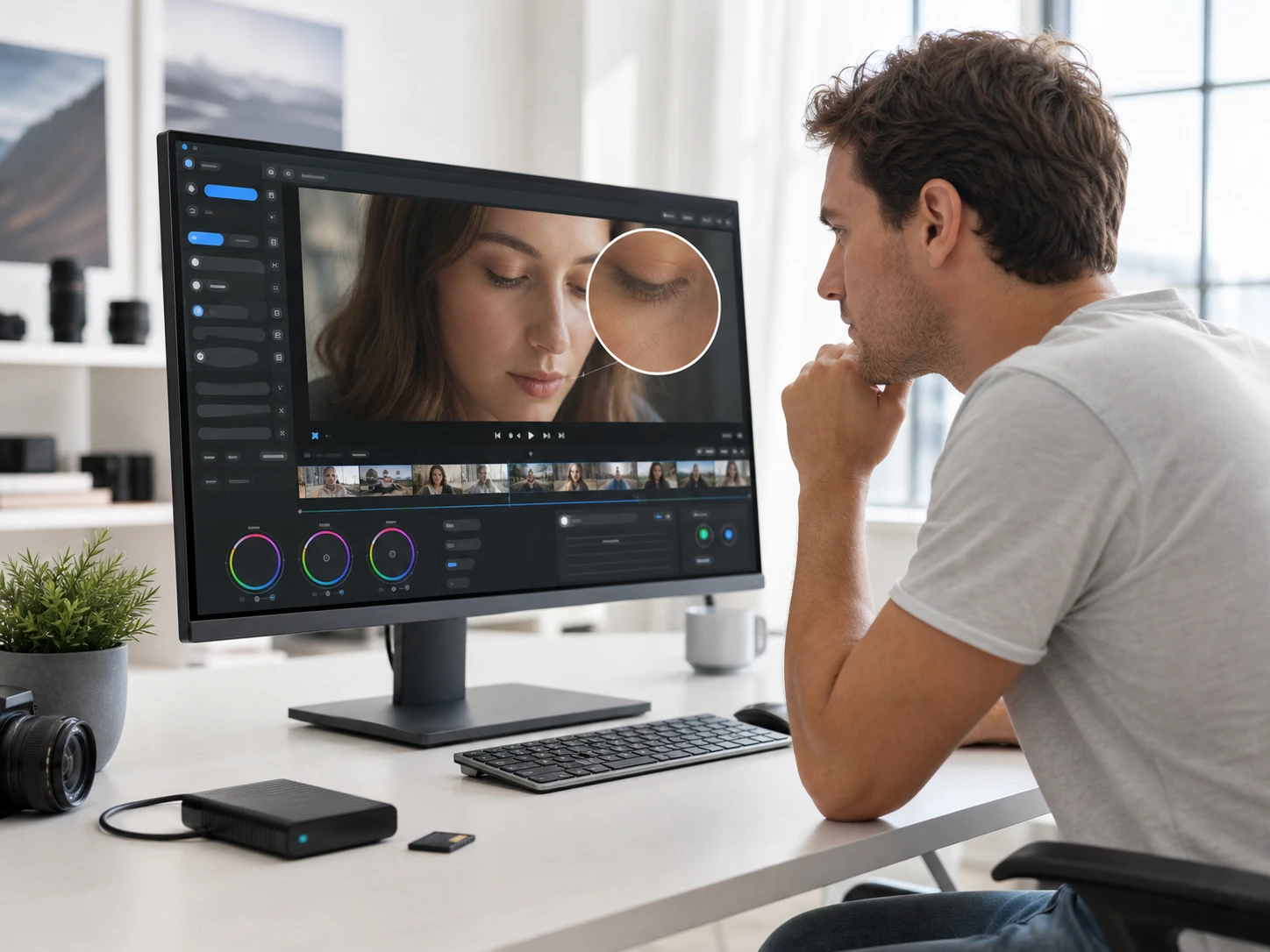
Judge What Can Be Saved
The footage came from someone else, so the first job is not fixing it but deciding how far it can go. Run the softest second through the video sharpener once, then decide whether to ask for a reshoot. It is a feasibility read before you commit an evening to the timeline.
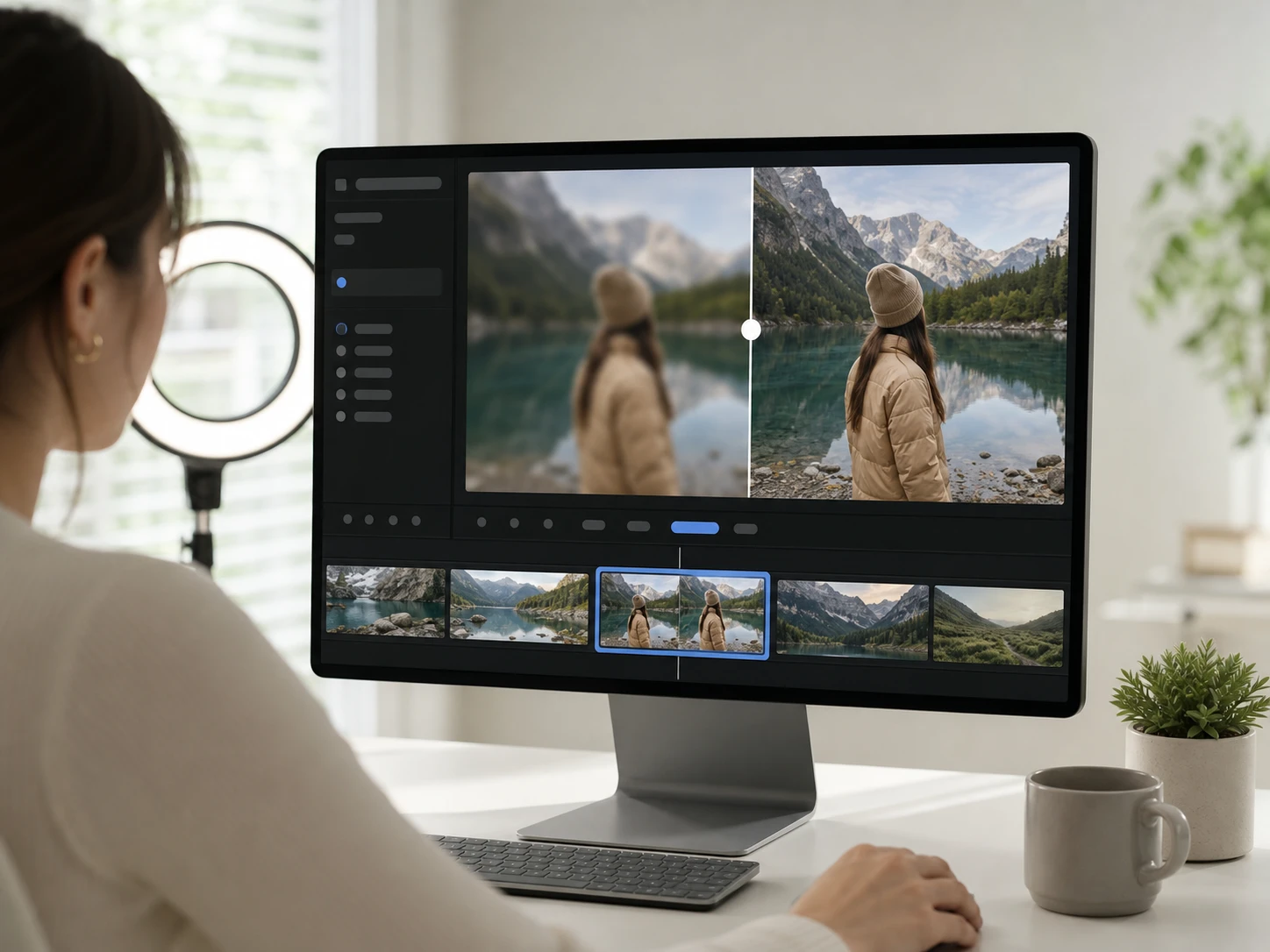
Fix the Few Shots That Slipped
The whole video is fine except the handheld stretch in the middle, where things went soft. Work only that clip, and once the video sharpener leaves it reading sharp, trail the motion to be sure no drag is left. You keep the cut you wanted without redoing the shoot.
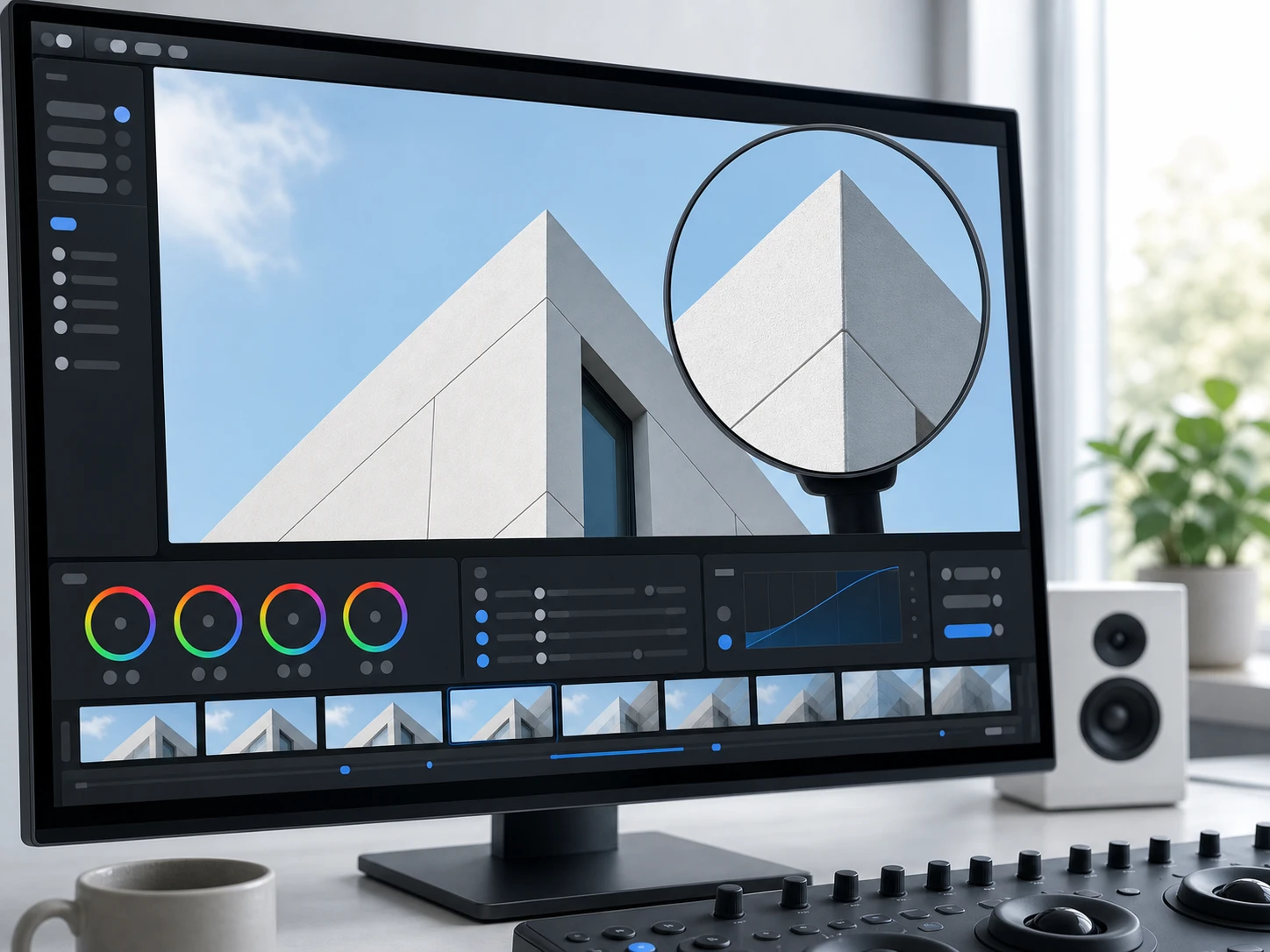
Sharpen Without the Tell
Over sharpening gives you away faster than blur does. A bright rim along a high contrast edge is something a trained eye catches at once, so with the video sharpener the check here is the halo, not merely whether it looks sharp. The video sharpener keeps the result reading like footage, not like a filter.
What the Video Sharpener Rebuilds
Each card is one thing the video sharpener actually does to your footage.
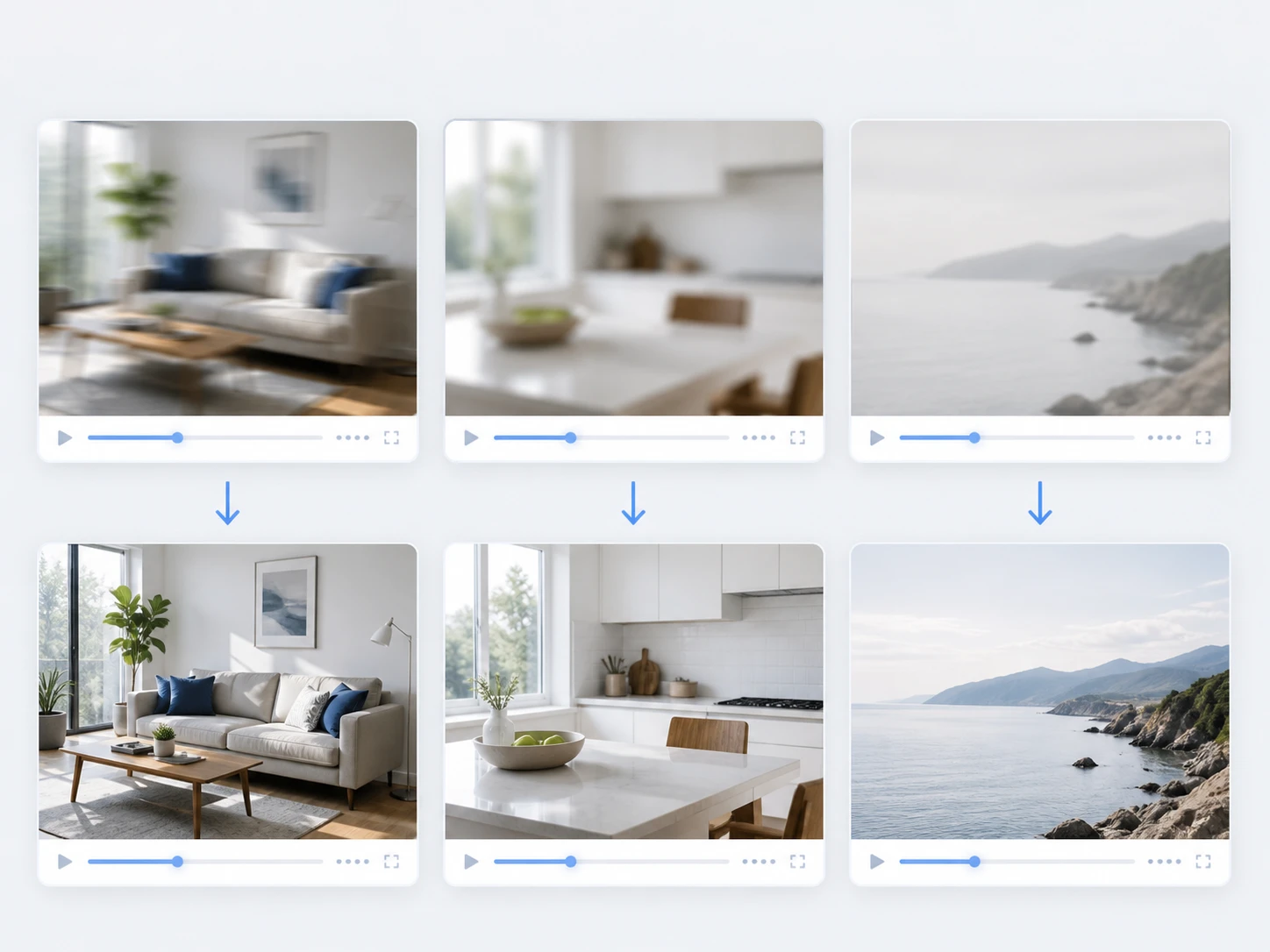
It Sorts the Blur First
Shake, missed focus, a soft lens and heavy compression are not one problem, so the video sharpener does not throw one filter at all of them. Each cause takes its own path, which is why the check differs too: trail the motion for shake, look for detail tiers on a focus miss, watch overall contrast on a soft lens. That is what makes it a real sharpen blurry video pass rather than a slider.
Noise and Blocks Come Off Too
Blur from noise is not the same as blur from optics, so the video sharpener lifts noise and compression artifacts while it works the edges, no second job needed. Pick a flat area, sky or a plain wall, and read it at 100 percent to be sure it came clean and did not turn waxy. It is a steady way to sharpen video quality, not just the outlines.
It Sharpens AI Made Clips
Footage that came out of an AI model tends to give itself away in flat areas and skin, so those are the first places to look once real detail is put back. The video sharpener treats these clips as their own case and works real texture back into those weak spots. You can ai sharpen video this way and hand over a cleaner clip than the model gave you.
Clearer Without a Bigger File
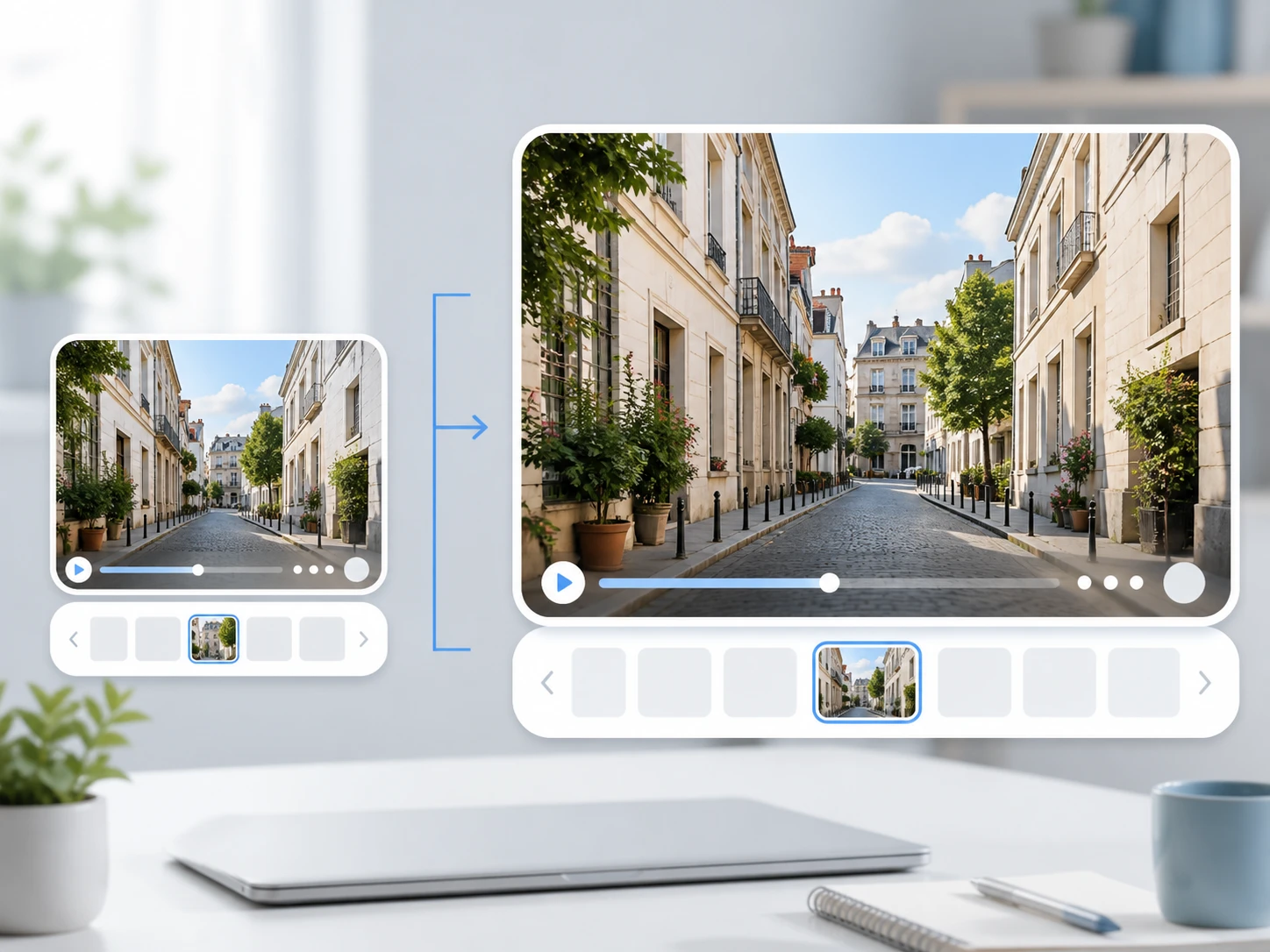
Wanting it sharper does not mean wanting it larger. Sharpening and upscaling are two roads: if the delivery spec is 1080p, keep 1080p and only lift clarity through the video sharpener. When you truly need a larger frame, Enhancers AI can take the source up to 4K, and you check once more that nothing that was sharp went soft along the way. That split is why people reach for this ai video sharpener over a generic filter.
Answers Before You Sharpen a Video
See What the Softest Second Holds
Upload one clip, try a test file first, and check the result at 100 percent before you commit the rest. Enhancers AI keeps the video sharpener ready in your browser.