


Graphic Enhancer
The graphic enhancer gives you sharper bitmap graphics you can check at 100%, from wordmark strokes to clean color blocks, then refine again if needed.

Where graphic enhancer judgment matters
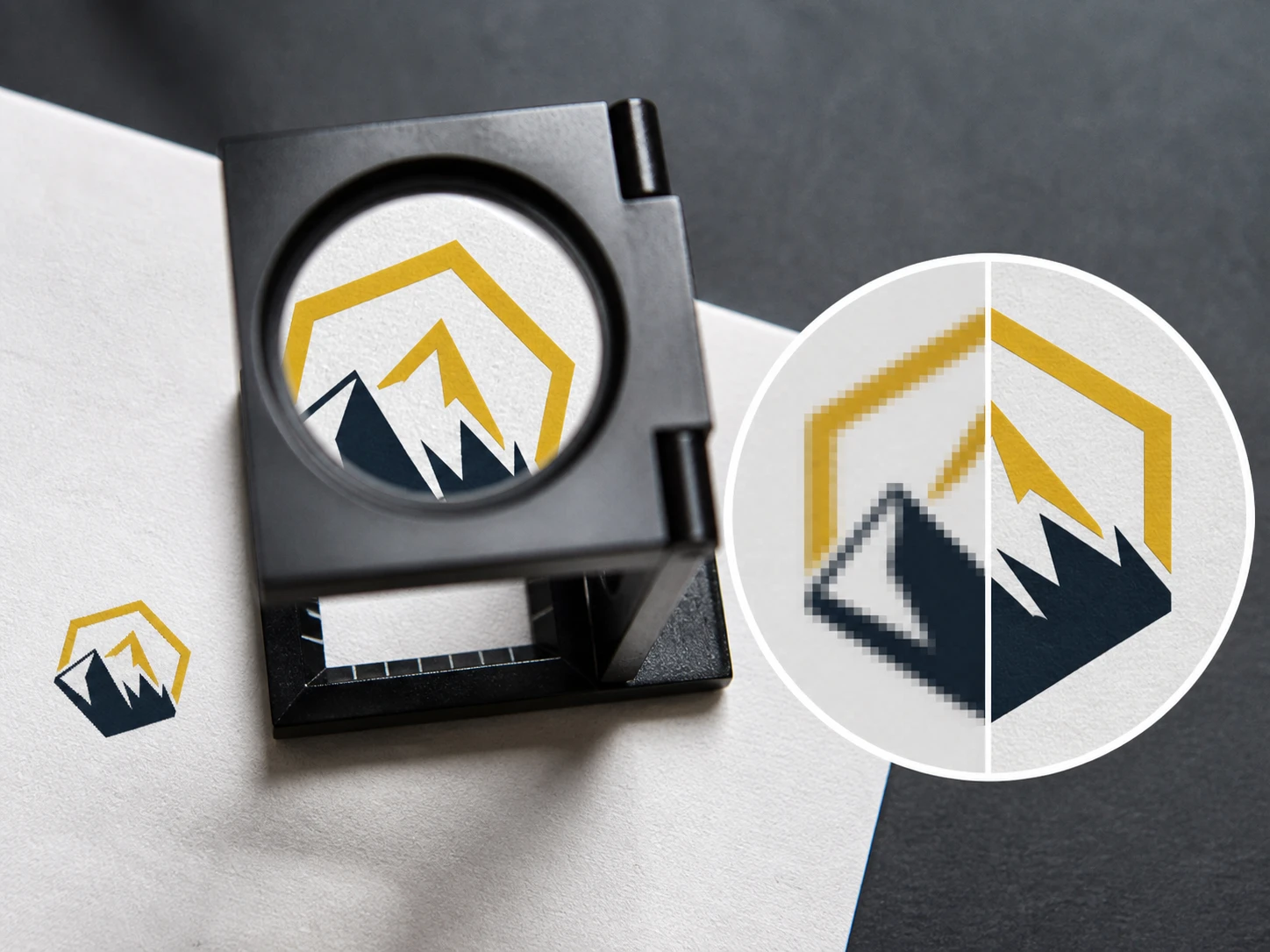
Print and large format reviewers
A banner, sign panel, or handbook layout can hide a small soft graphic until proofing. Use the graphic enhancer before handoff and inspect hard edges at final size.
Event and partnership teams
When a partner provides a compressed logo from a message thread, the graphic enhancer helps rebuild softened strokes and clean transfer artifacts before the asset reaches event artwork.
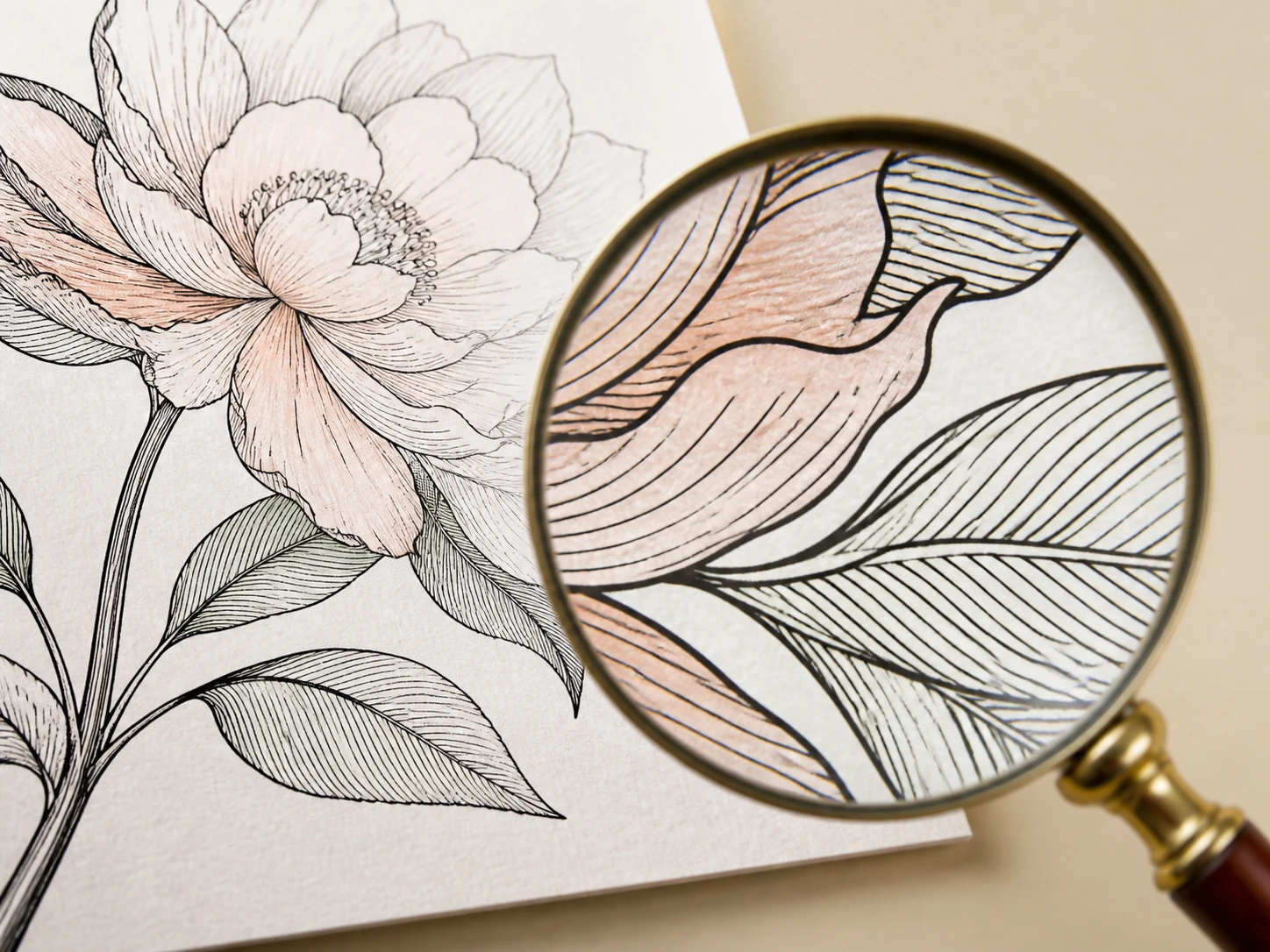
Illustration and AI art creators
Line direction, empty space, and color boundaries matter when artwork leaves the screen. The graphic enhancer lets creators review those signals after upscale artwork work.
What this graphic enhancer rebuilds
The graphic enhancer focuses on visible checks, so each refined file gives you edges, text, and flat areas you can judge at full size.
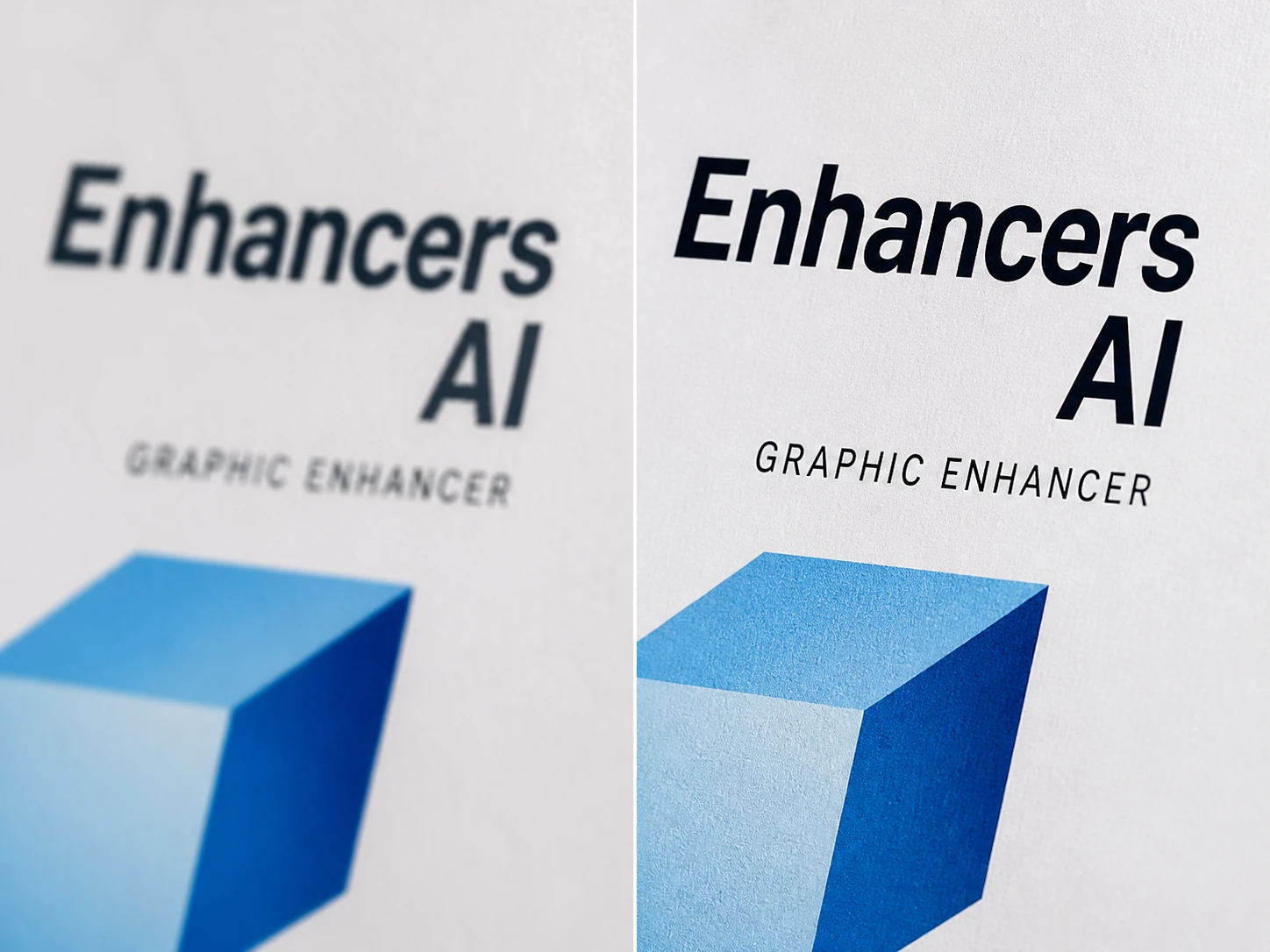
Letterform and line edges
Sharper wordmark strokes, thumbnail titles, and layout labels come first. Use the ai graphic enhancer when you need text edges to stay readable, then inspect the smallest line at 100%.
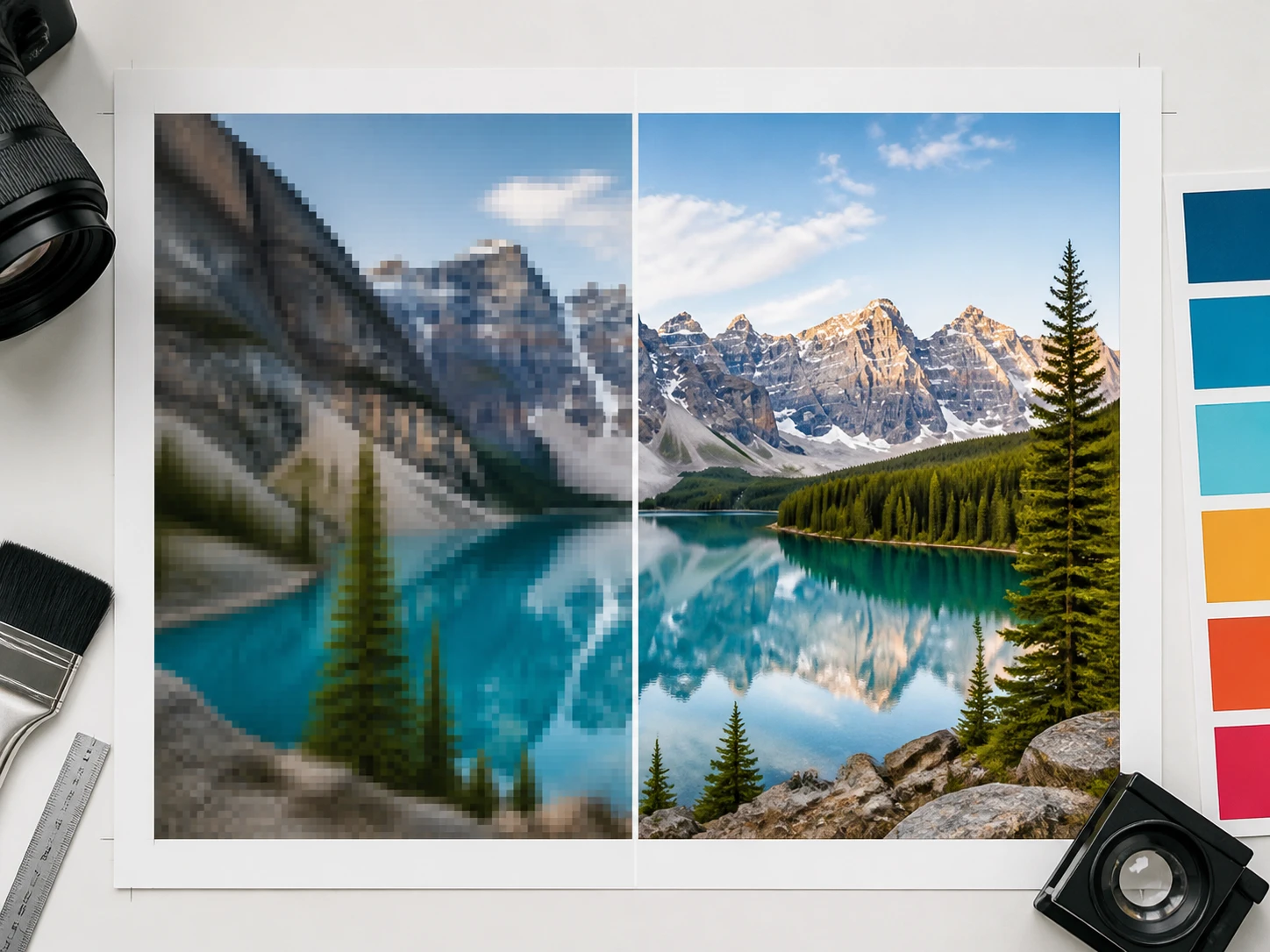
Artwork lines and color boundaries
Illustrations and AI generated art can be enlarged while keeping line direction and flat color borders in view. In this ai art upscaler workflow, prompts can guide detail direction for that scene.
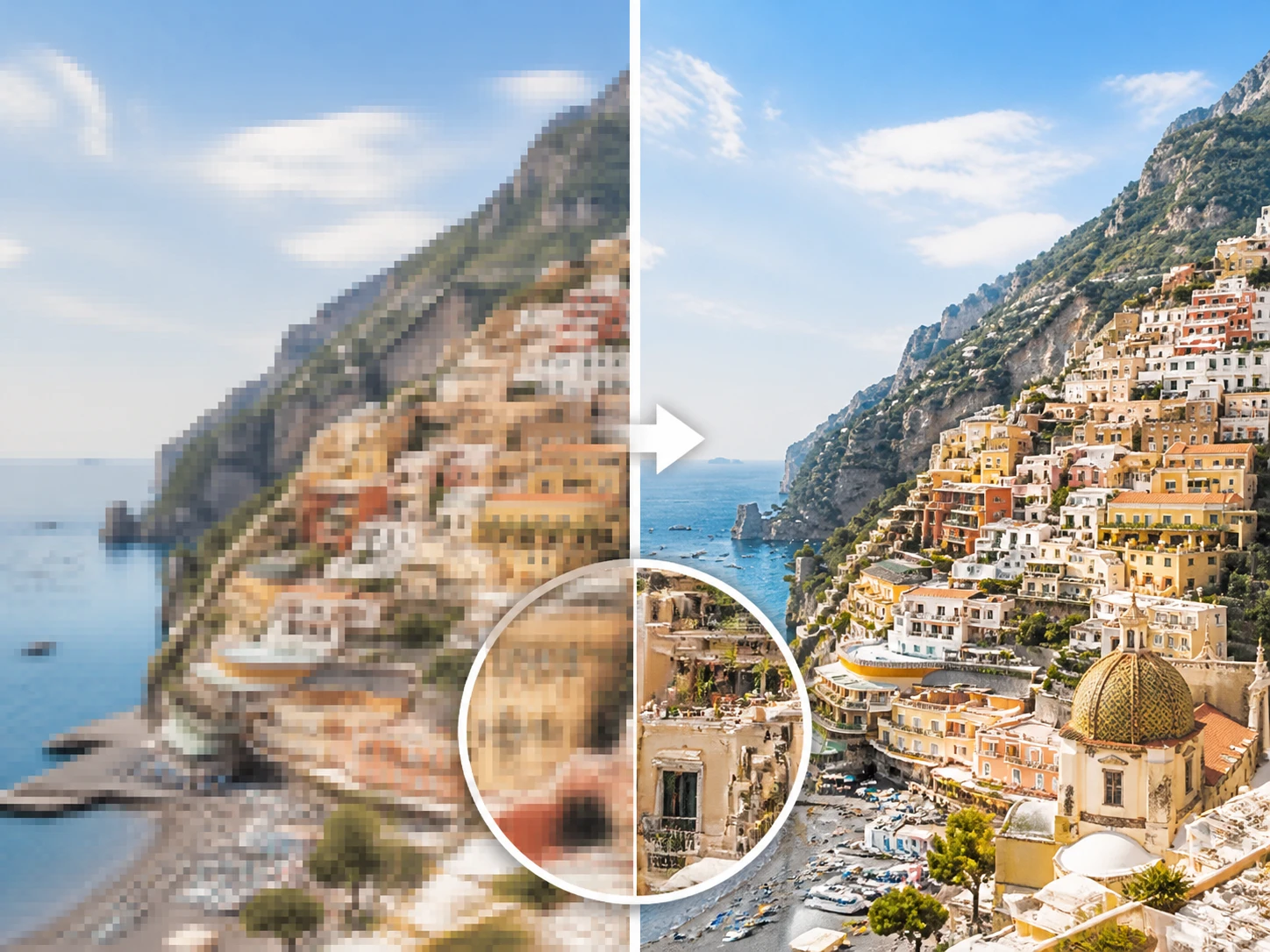
Soft areas only
The graphic enhancer finds softened edges and lines by file type and scene, then rebuilds that area. Clean color blocks and blank space become the check point, because they should match the original.
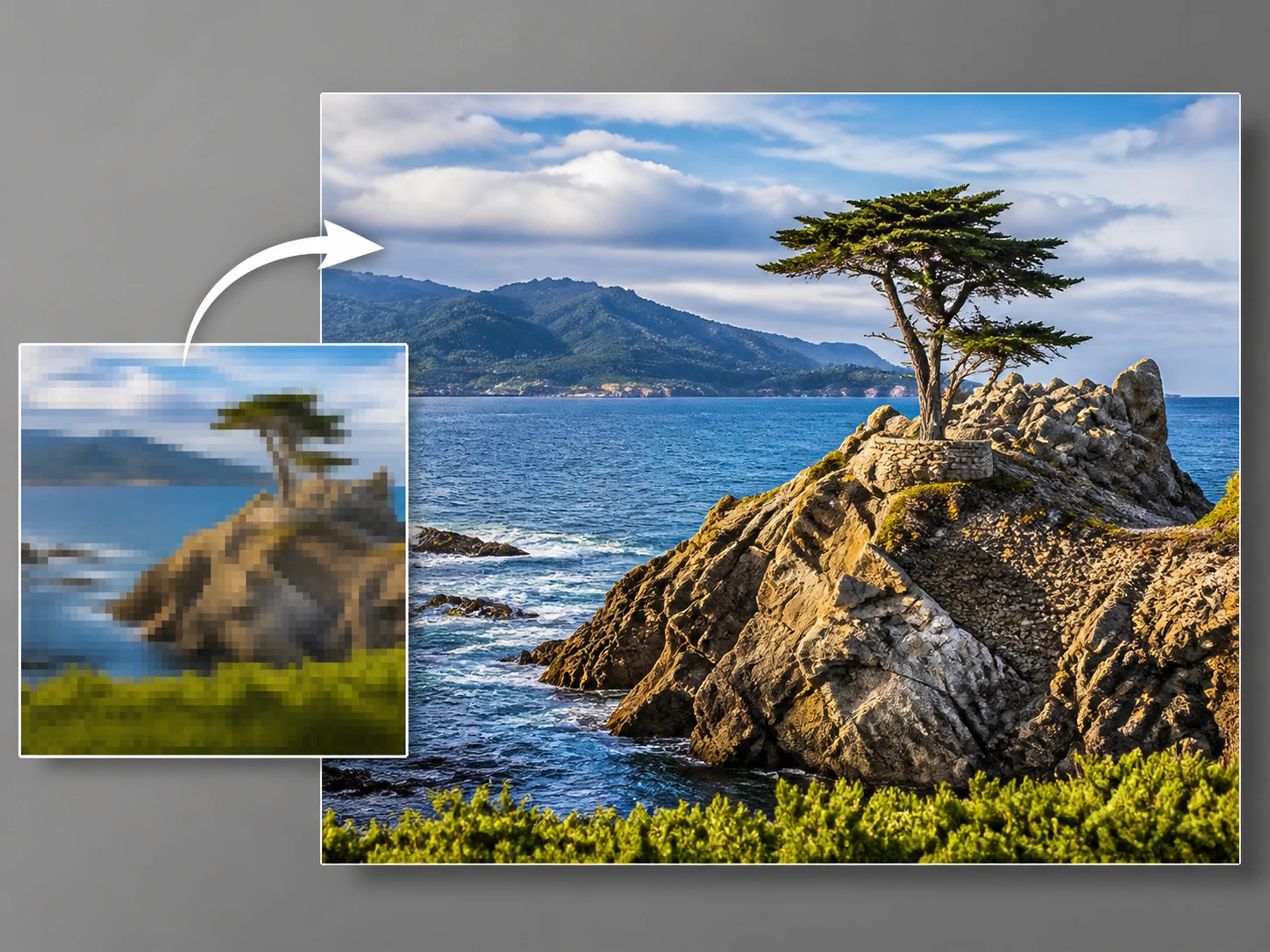
Artifacts cleaned before enlargement
Graphics passed through chat, email, or slides often carry speckling and compression blocks. Clean those marks, then use the graphic upscaler path to continue toward an 8K bitmap when the layout needs it.
Use graphic enhancer at full size
The graphic enhancer is built around upload, matched refinement, visible review, and a second run when the inspection shows a better scene choice.
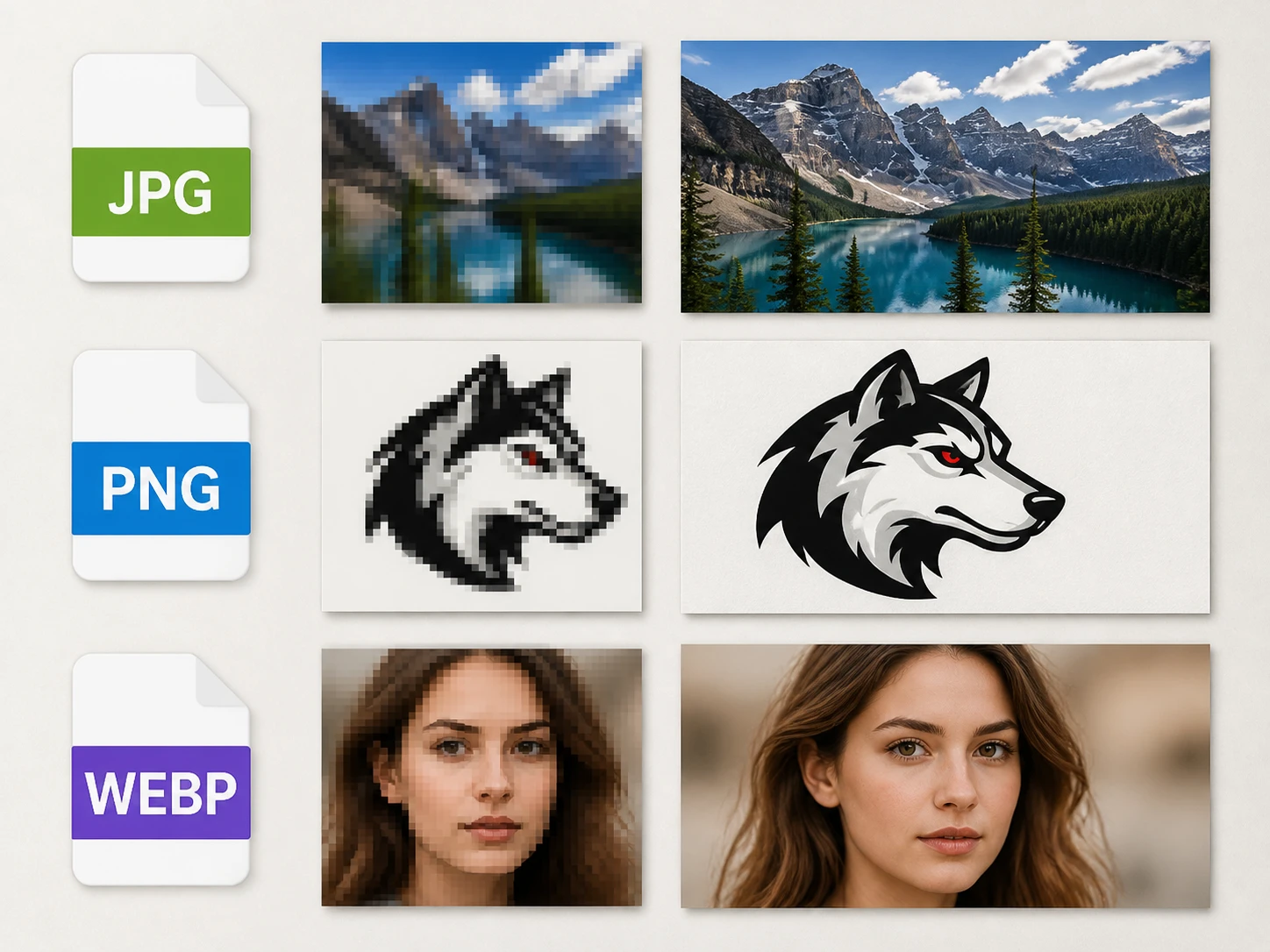
Upload the compressed graphic
Add a low resolution logo file, line drawing, AI output, thumbnail, or layout graphic as JPG, PNG, or WEBP. A set of related graphics can be uploaded together.
Let the scene guide the model
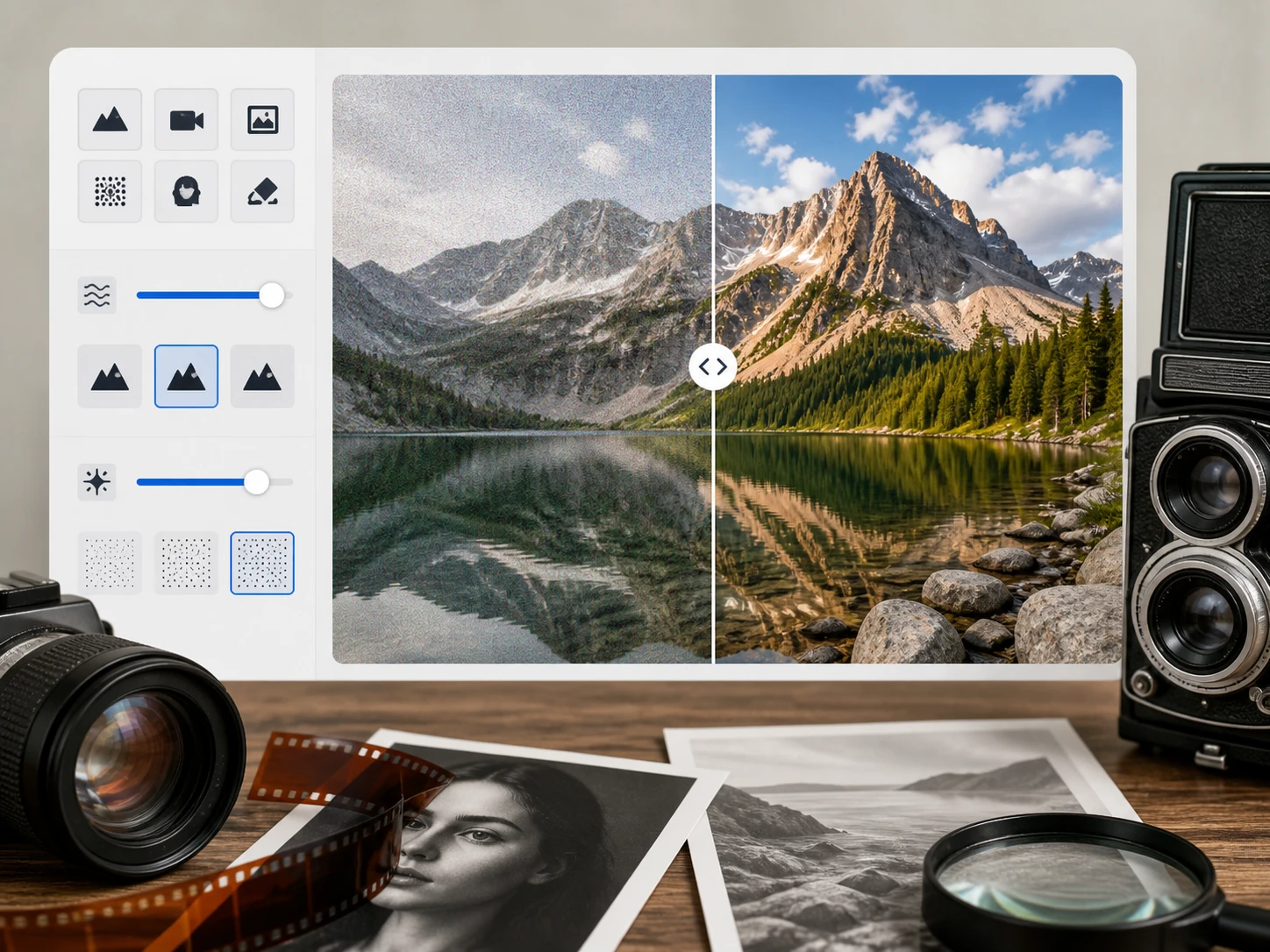
The graphic enhancer routes each file by type and scene, then locates soft edges, lines, and letterforms. You can choose a model or scene yourself, add a prompt for line art or AI art, and adjust denoise strength when compression noise is heavy.
Inspect the result before download
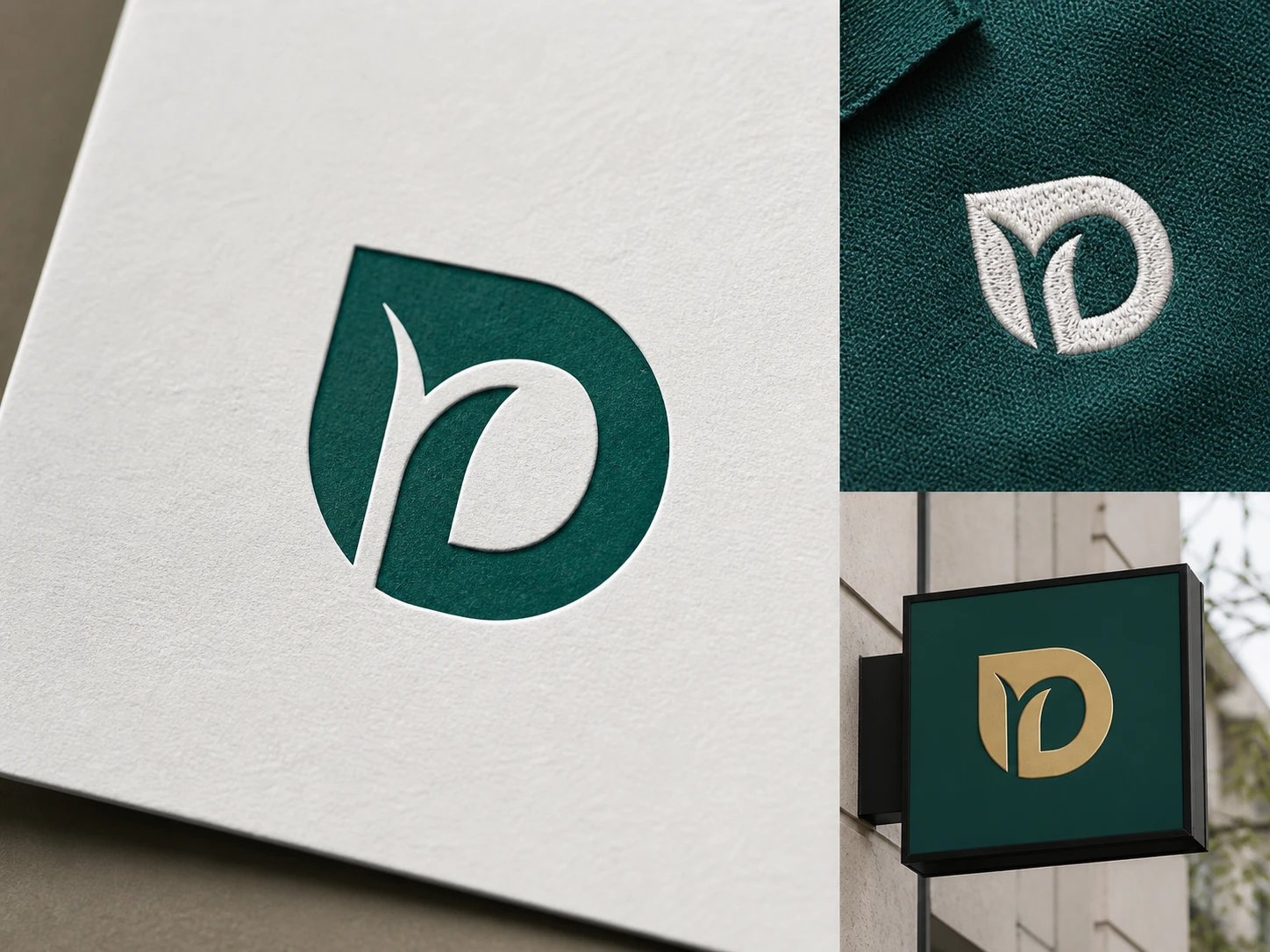
Open the result at 100% and check whether small text reads, thin lines stayed thin, and clean color blocks match the original. Change the scene and run again if needed, then download without a watermark or continue up to 8K.
Proof ready graphic enhancer uses
Pick the scenario closest to the file in front of you, then inspect the named edges before you approve it.
Logo Enhancer
A partner supplied logo from a message thread may arrive with fuzzy wordmark strokes and compression marks. Use this logo enhancer flow to sharpen logo edges, clean artifacts, and upscale logo bitmap files for the event layout, then check each separated stroke at final size.
Thumbnail Enhancer
Podcast, course, and feature cover squares often get reused as banners or handbook graphics after several platform exports. The thumbnail enhancer targets softened title blocks and rough graphic borders so the smallest visible title can still be read at 100%.
Upscale Artwork
Only having a compressed export of an illustration changes the review task. Upscale artwork in the same workflow, guide detail with a prompt when that scene fits, and confirm that thin lines were not thickened while empty areas stayed open.
Proposal Graphics From Shared Decks
Diagrams and visual marks pulled from email chains or slide decks can look blotchy in a formal proposal. Run them through the graphics enhancer, remove compression noise, and approve the file by checking flat color patches and hard borders.
graphic enhancer questions before upload
Refine one graphic first
Upload a low resolution design asset to Enhancers AI, inspect what graphic enhancer rebuilt at 100%, and continue only when the bitmap holds up.