


Image Enhancer
Enhancers AI is an ai image enhancer that rebuilds a soft, noisy, undersized photo in a single workflow, holds your original colors, and lets you check the result at 100% before you use it.
Who Reaches for This Image Enhancer
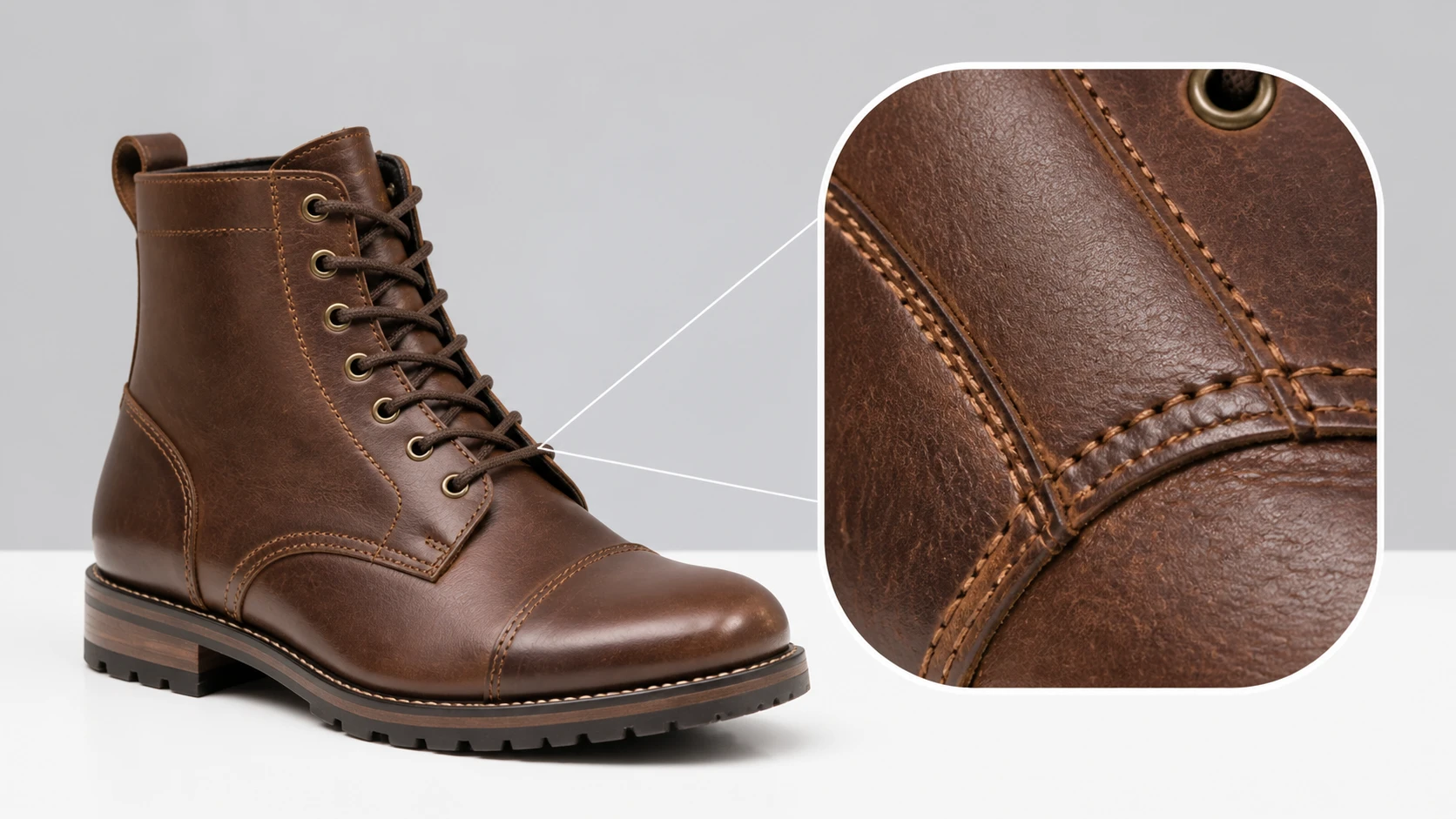
Online Store Sellers
Supplier shots and phone photos land in your catalog at different quality, and buyers zoom the main image to its softest corner before they buy. Run the weakest one through the image enhancer first, then read the product label text at full size so it still holds at the crop a shopper will pull.
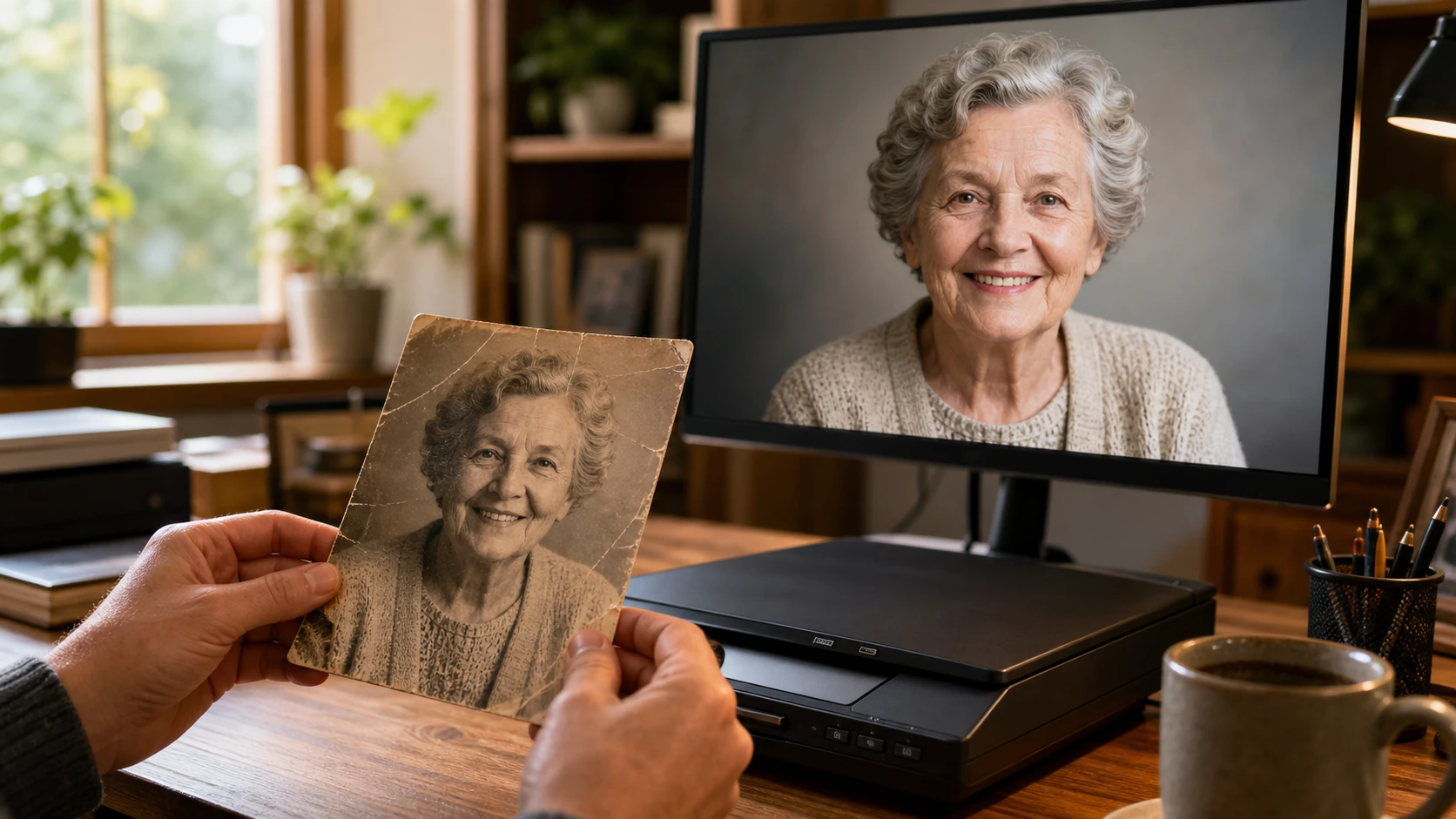
Family Archive Keepers
You are scanning a box of old prints where the copy in hand is often the only one left. After each pass, hold what the image enhancer returns against the person you remember and the room they stood in, checking that the detail came back without turning the face into someone new.
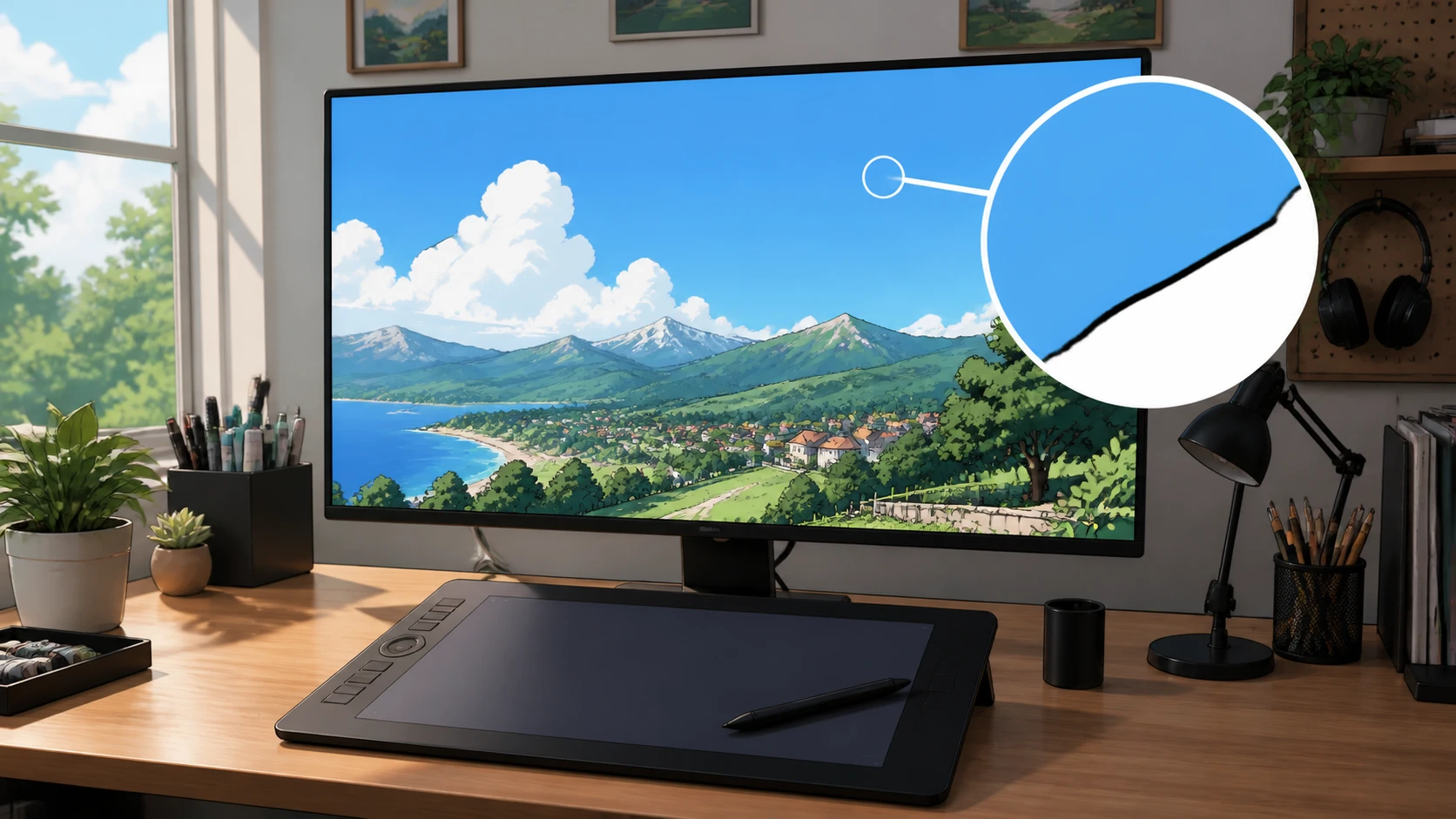
AI and Anime Creators
Your generator output looks a notch short on texture and size for a paying client. Push it up in the image enhancer, then zoom to 100% and read the flat sky or a single clean line to confirm the grain reads as real detail before it goes out the door.
What the Image Enhancer Fixes First
Every card shows what the image enhancer changes and how you check it, so you read the result instead of trusting a label.
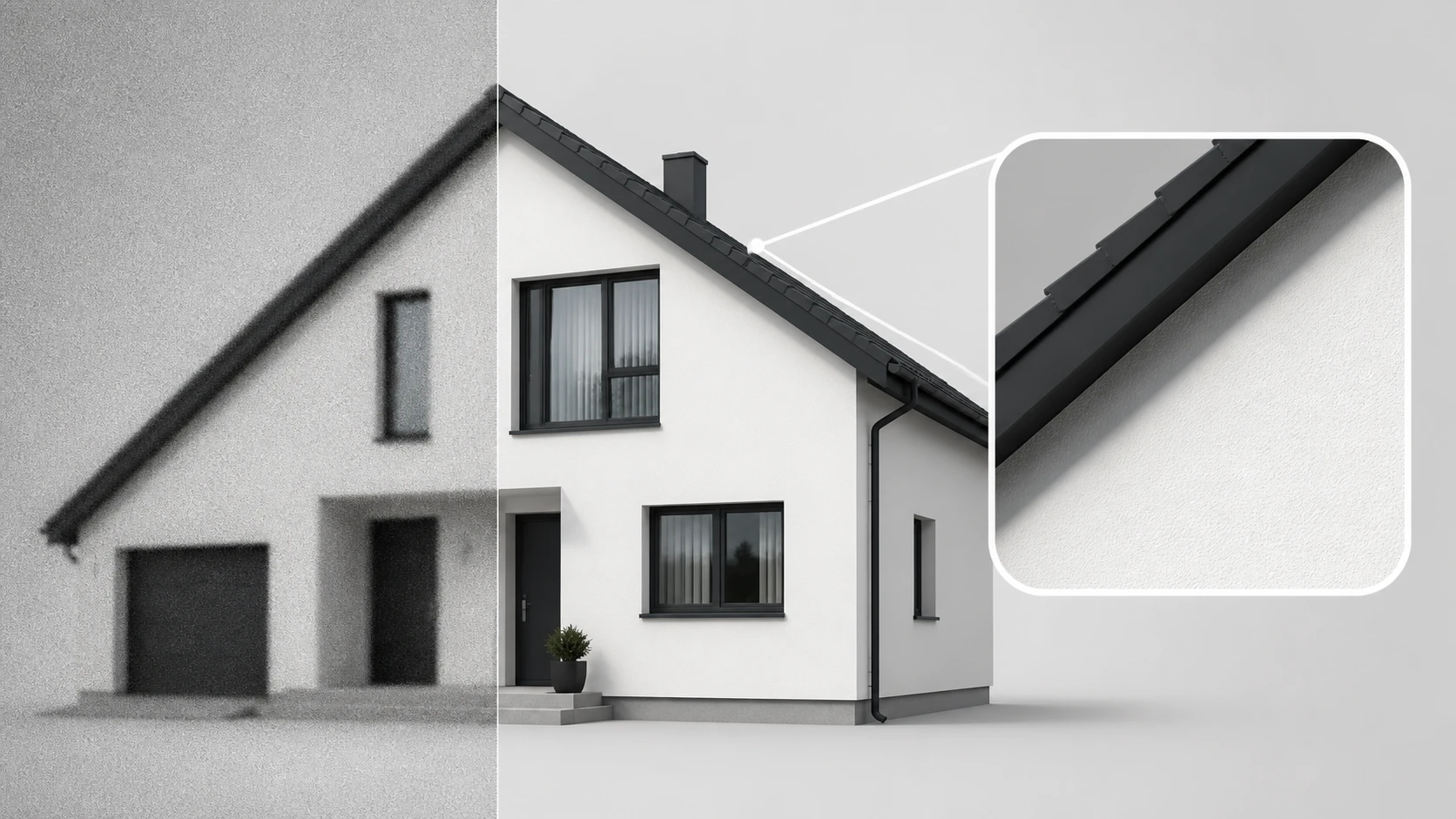
Whole Image Lifted Together
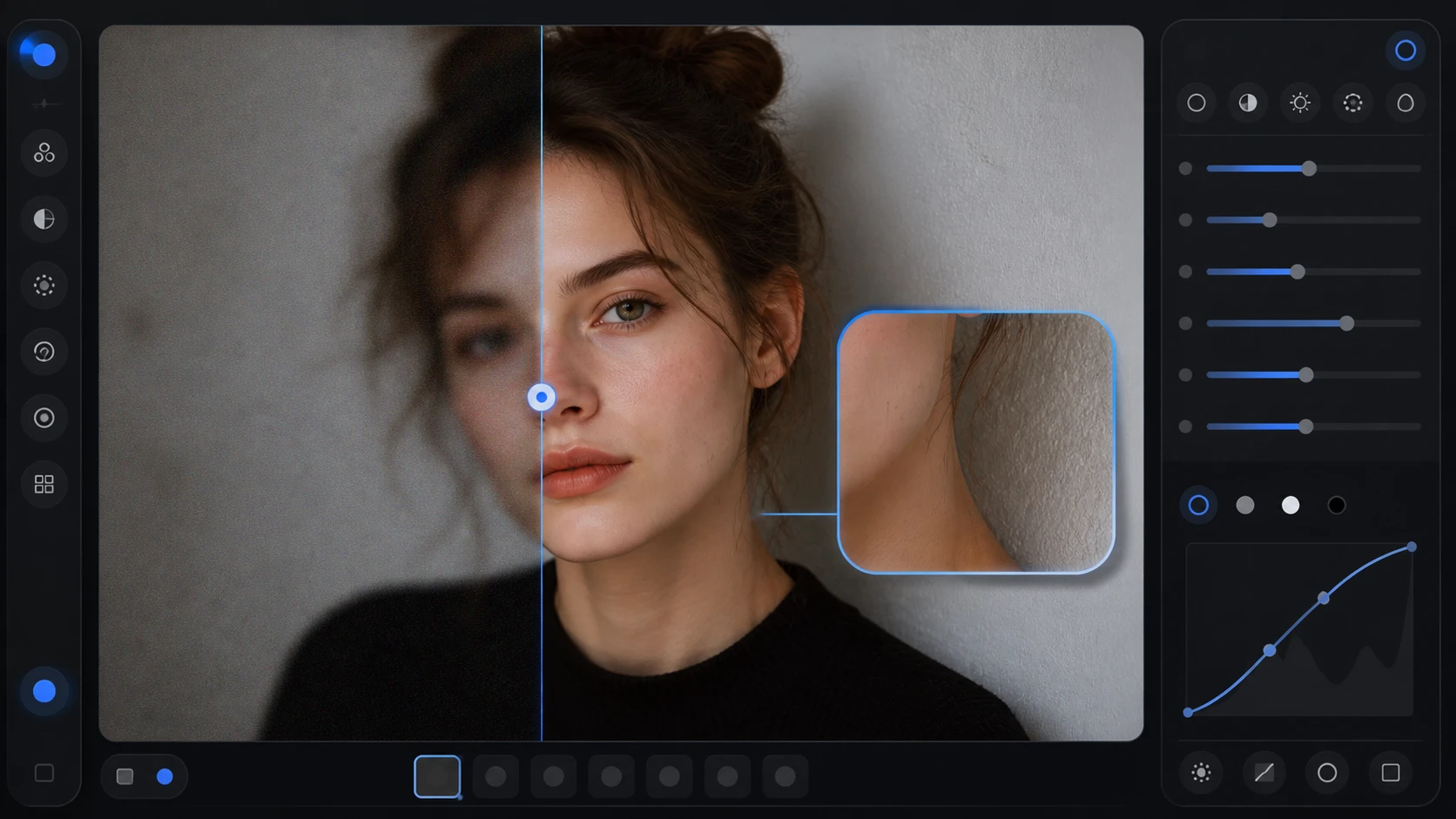
Clarity, noise and detail all get handled by the image enhancer in the same workflow, so you stop bouncing a file between a sharpen tool and a denoise tool. To judge it, open the result at 100% and read three spots: a hard edge that should split cleanly, a flat wall that should sit clean without a plastic sheen, and an area that was already sharp and should look untouched. That check, not the label, is what makes it an image quality enhancer you can trust.
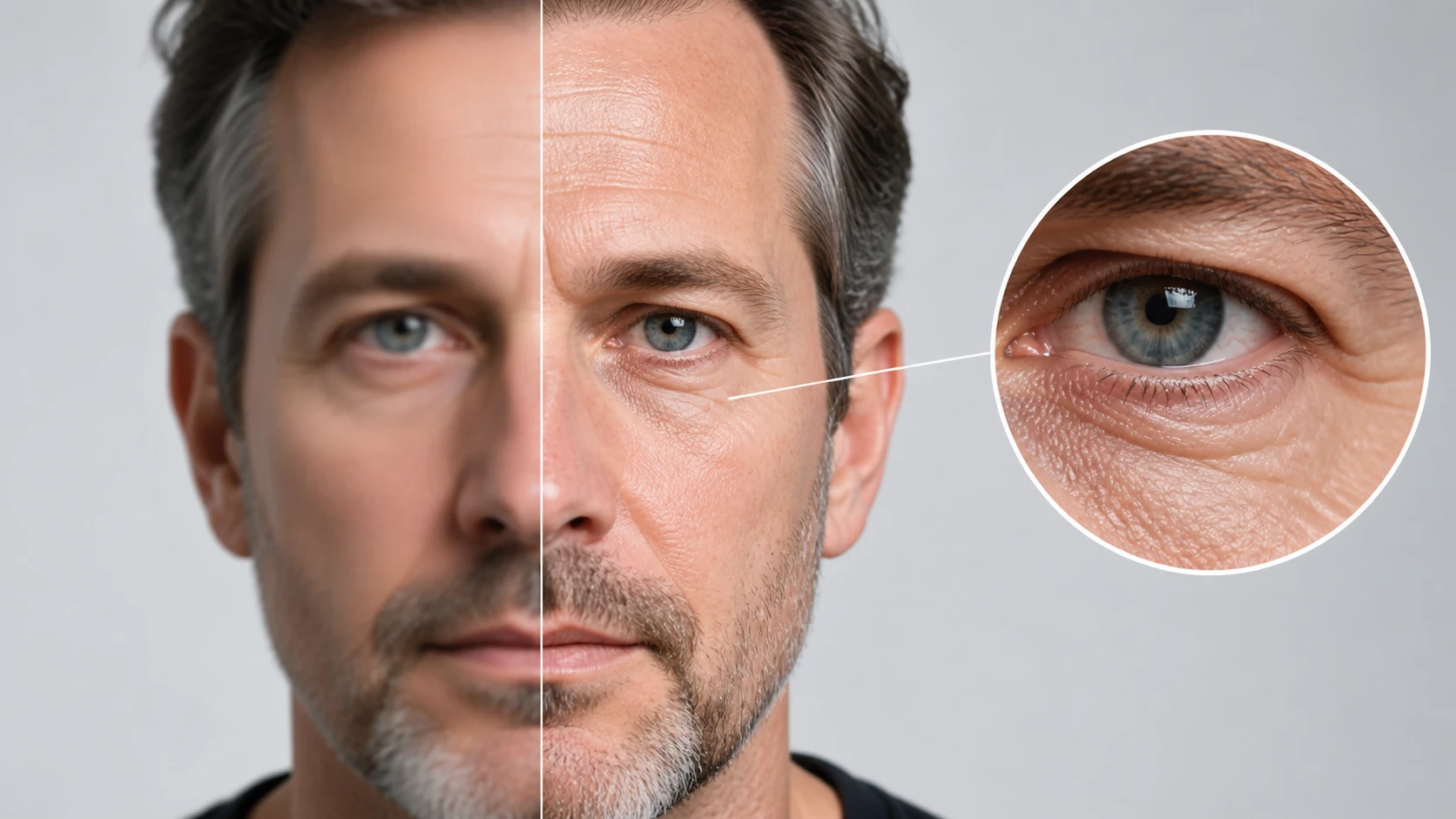
Portraits Held True to the Face
Faces, skin texture and shadow areas are where a photo enhancer usually slips, so the image enhancer works down each face on its own. Zoom in afterward and the person should still read as the same person, with skin that keeps its pores instead of going waxy. As a photo quality enhancer it rebuilds the detail that is there and never paints on a new face.
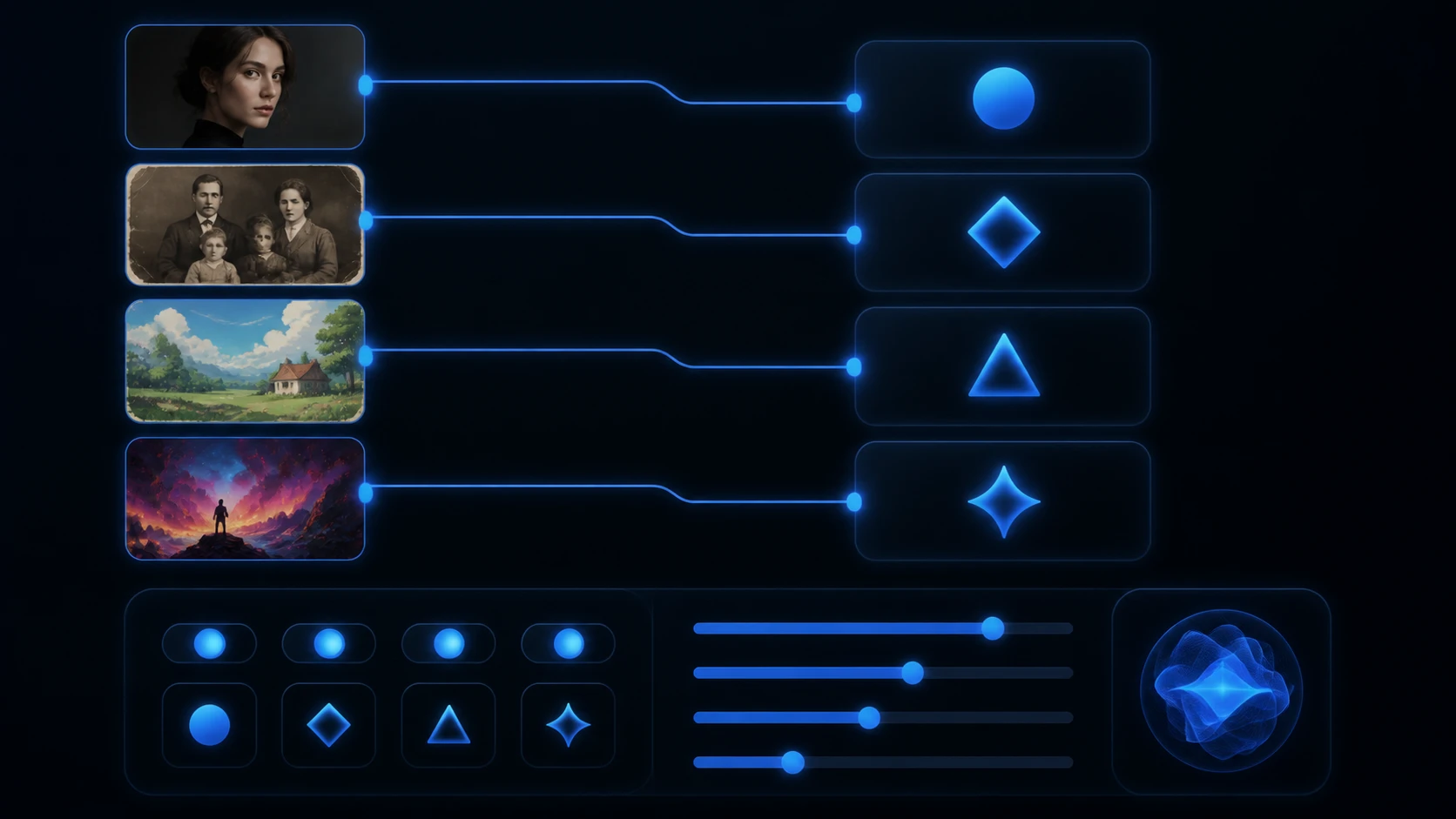
Automatic Routing You Can Take Over
Each file is read for its type, a portrait, an old print, an anime cell or an ai image enhancer job on generated art, and the image enhancer sends it to the model built for it. When you would rather decide yourself, pick the model or the scene and the settings fill in for you. Either way you confirm the call at 100%, not on faith.
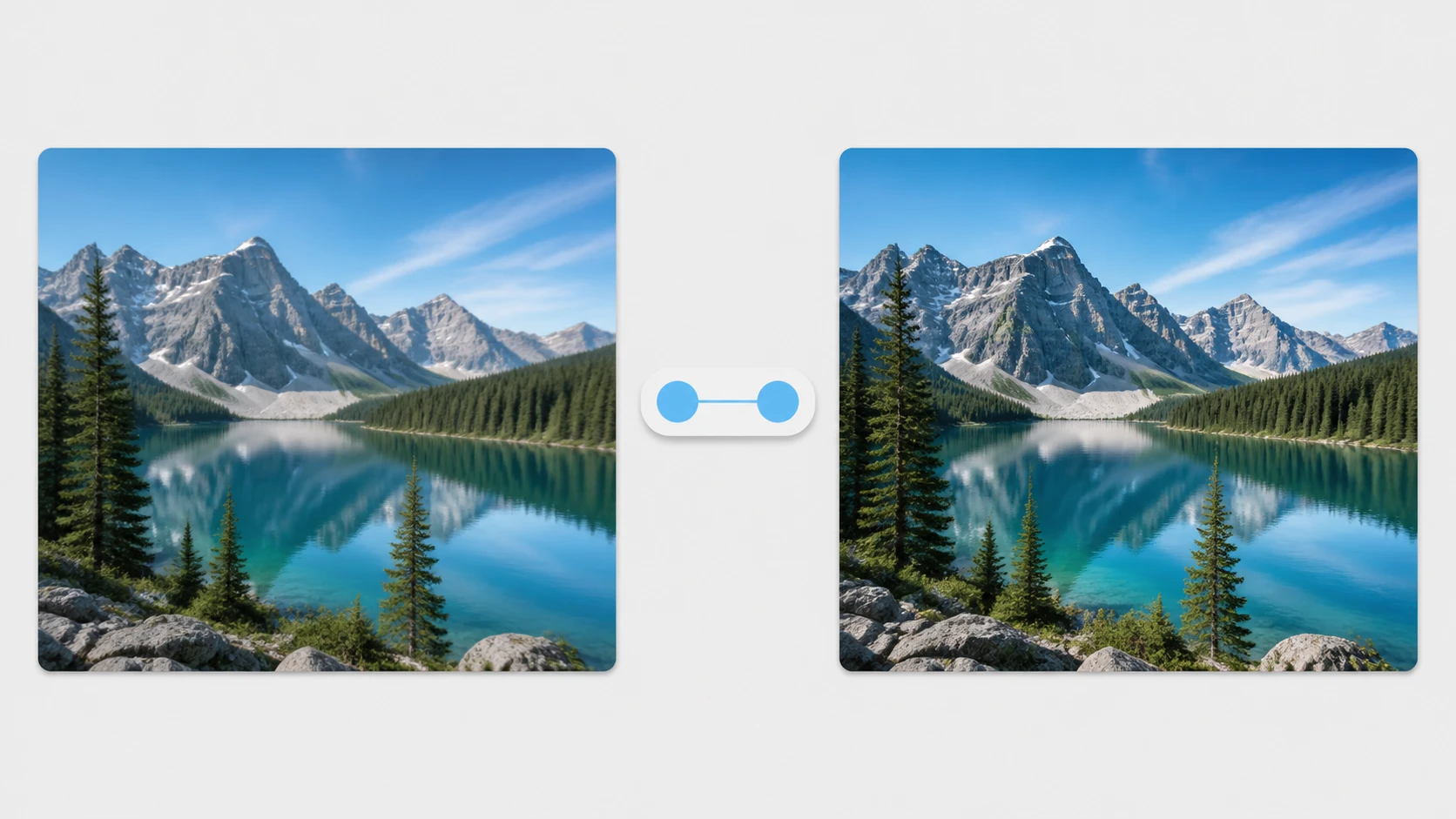
Colors That Stay Put
The image enhancer only moves clarity, detail and resolution, so the color and mood you shot stay where they were. Set the result against the original and read the same patch of color: the hue should not drift warmer or cooler. That restraint is the point, and it is why the tool reads as a picture enhancer rather than a filter.
Run the Image Enhancer in Three Steps
Three steps in the image enhancer, each with the detail a first time user needs and a way to confirm you are done.
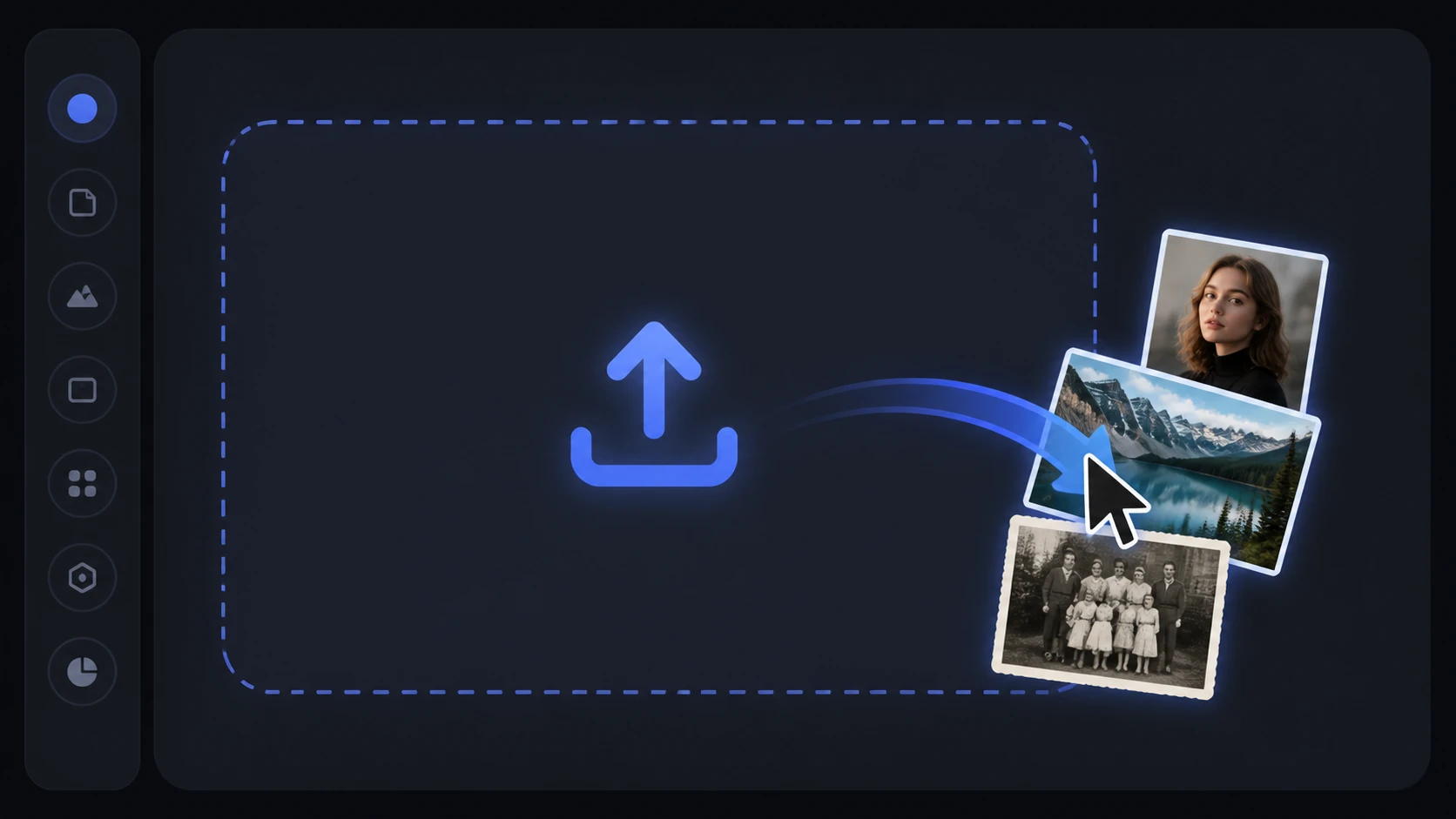
Upload Your JPG, PNG or WEBP
Drag the image you want to fix into the image enhancer, in JPG, PNG or WEBP, and you can add several at once when a batch needs the same treatment. Your files and results sit in your account space, and the processing history stays there so you can come back to a job later.
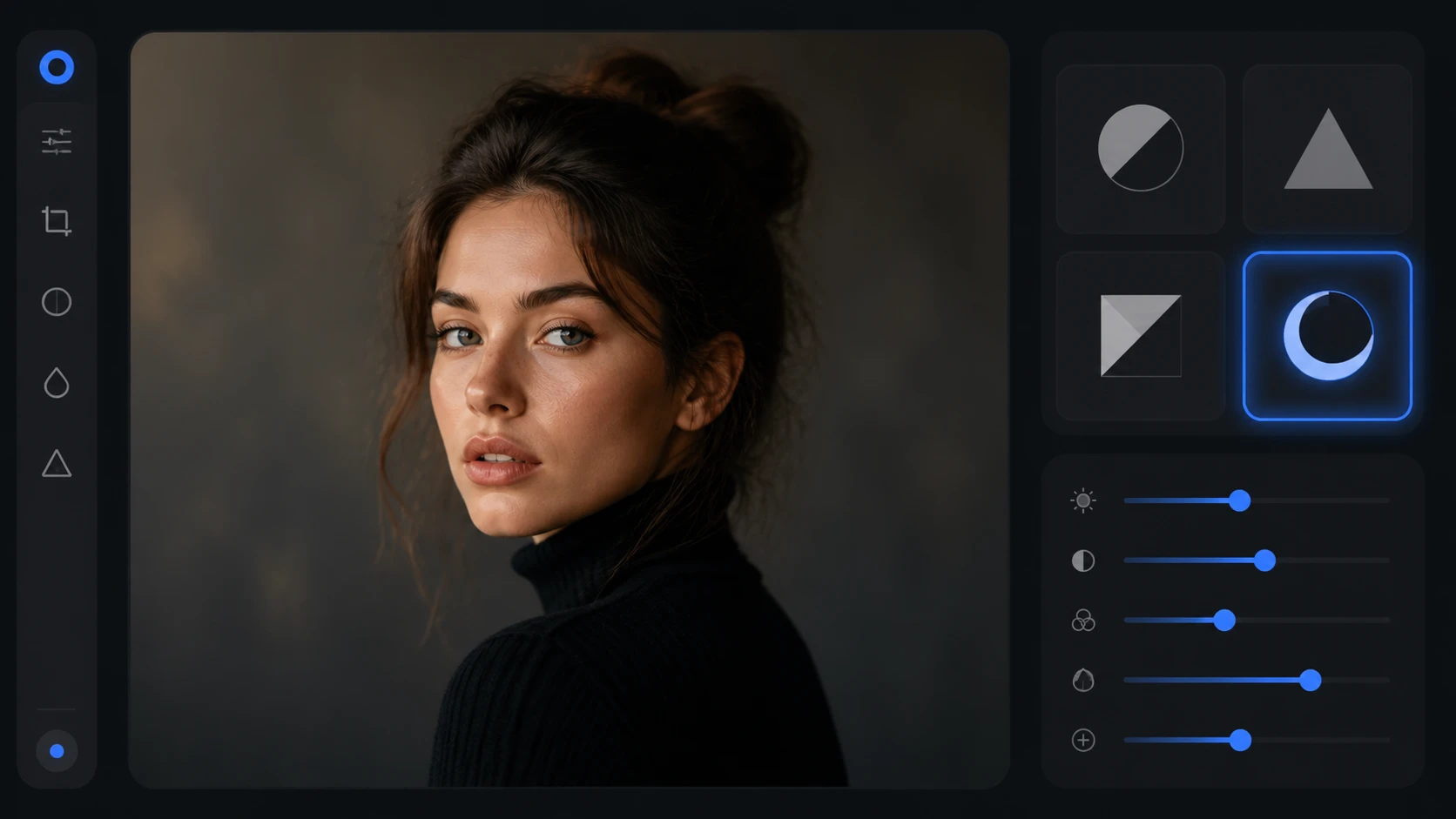
Let It Route or Pick a Model
By default the image enhancer matches each file to the right model by type, a portrait, an old photo, anime or generated art, with the settings filled in. To steer it, choose the model or the scene yourself, and for anime or AI art you can paste a prompt to guide which detail comes back.
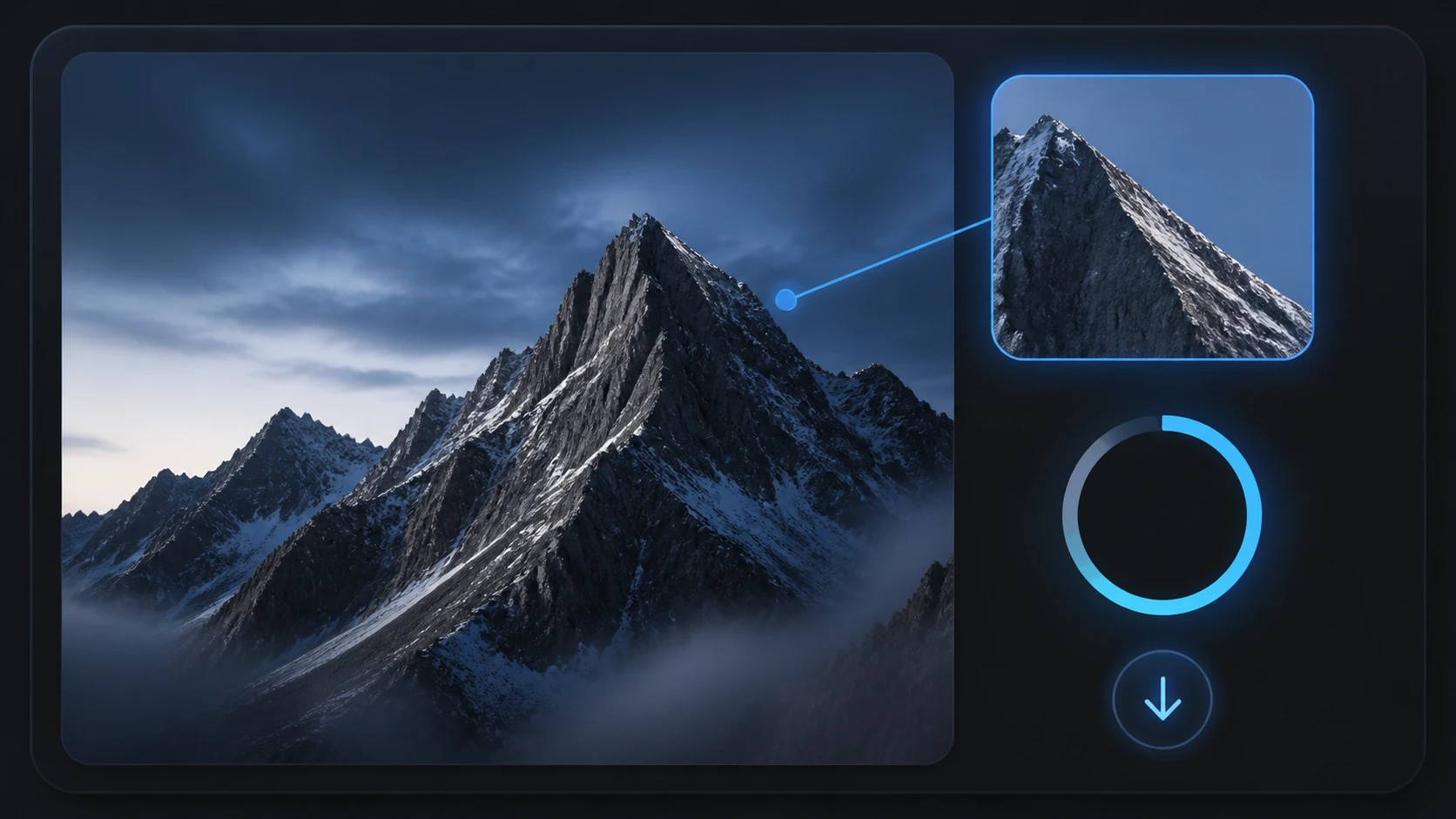
Enlarge, Check, Then Download
When you need a bigger file the image enhancer scales it 2x to 8x, up to 8K, rebuilding detail from the picture instead of stretching it. Open the result at 100% along a hard edge, and if a spot looks wrong, change the scene and run it a second time before you download, watermark free.
Real Jobs This Image Enhancer Handles
Four files people bring to the image enhancer, and the one thing to check on each before calling it done.
Enhance Photo 4K
A 4K display makes an older sized photo look soft the moment it fills the screen. Lift the whole image in the image enhancer, then scale it up for the larger frame, and when it fills a 4K screen step close: the edges and texture should hold without that smeared, stretched look. That is what a 4k image enhancer should deliver: real texture at full size, not just a bigger copy.
Enhance Blurry Photos
Group shots that traveled through chat apps come back squeezed, with edges and faces mushed by the compression. Send it to the image enhancer to clear the compression artifacts and rebuild the clarity, then check two things: the face reads as who it is, and a hard edge like a collar splits apart again.
Enhance Old Photos
Building a digital album from a box of prints, you scan a copy that carries every scratch and speck of grain because the negative is long gone. The image enhancer clears the scratches and noise and brings detail back, with optional color if you want it or black and white if you would rather keep it. Hold it next to the person you remember: the detail returns and they are still themselves.
Enhance Pixelated Image
Sometimes the only survivor of a lost original is a thumbnail sized archive file that turns to blocks when you enlarge it. Run it through the image enhancer to rebuild from the content first, then size it up to something usable, and check that the blocks became true edges and texture rather than bigger blocks. Low resolution and over compressed pixels can be rebuilt this way.
Questions Before You Try It
Bring the File You Almost Deleted
Upload one image, run the image enhancer online, and read the result at 100% before you commit to it.